Backend List
The user can view the pre-configured Backend Host list and add new ones from this screen.
Accessing The Screen
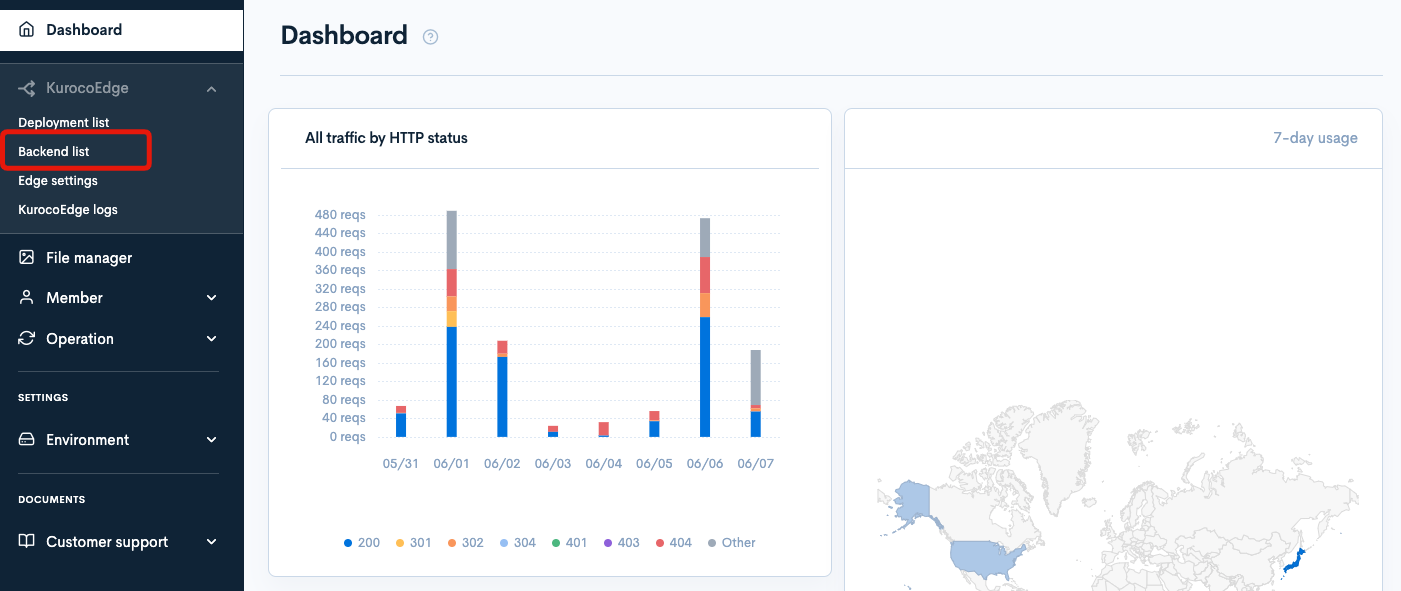
From KurocoEdge menu, click Backend List.
Field descriptions
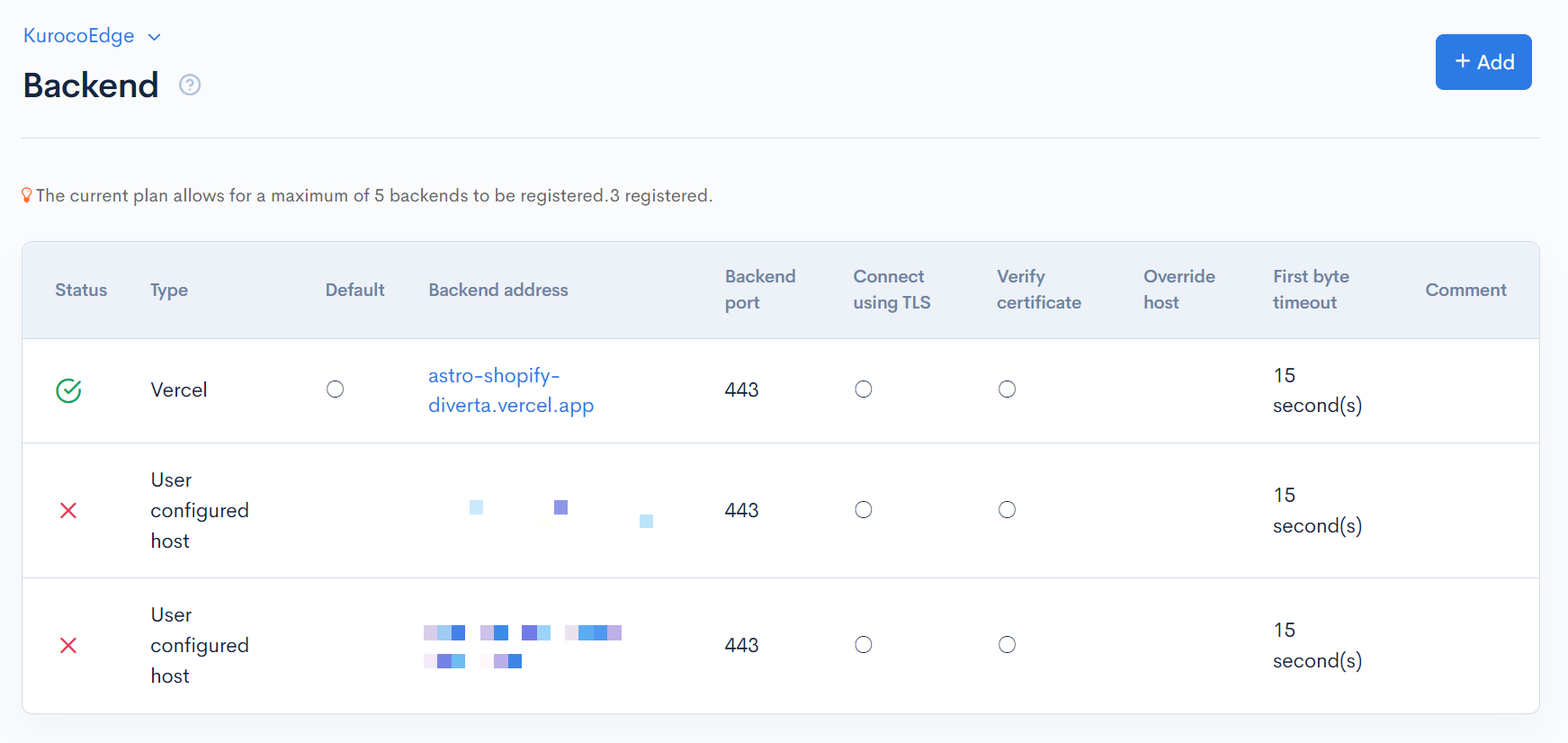
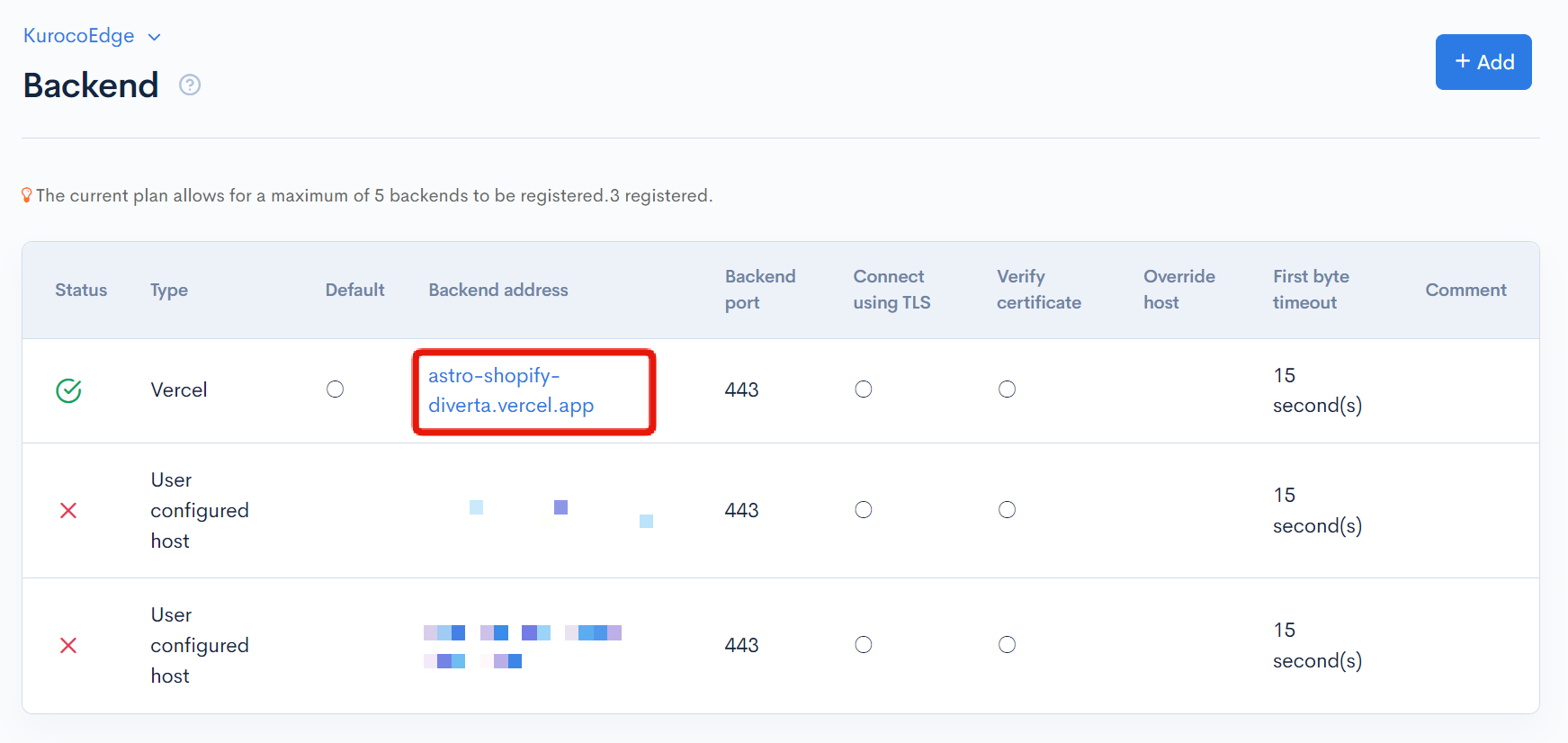
This screen lists all the backends configured for your Fastly service ID.
This represents a whitelist of backends that KurocoEdge is allowed to forward the response to, selectable for the deploy version or in BackendURL rule.
| Item | Description |
|---|---|
| Status | The backend used in the deployed operation is marked with a check mark. |
| Type | Host provider name or type |
| Default | Default backend of the currently Active deployment will be marked "○" |
| Backend address | URL or IP address of the host |
| Backend Port | Host Port number manually or automattically set-up during registration |
| Connect using TLS | If connecting to the backend with TLS, it will be indicated with a check mark. |
| Verify certificate | Certificate verification status ○ (verified) or × (not verified) |
| Override Host | Domain name to rewrite original host |
| First Byte Timeout | Maximum waiting time for a response from the Host |
| Comment | |
| The comments set for the backend will be displayed. |
Add Backend Host
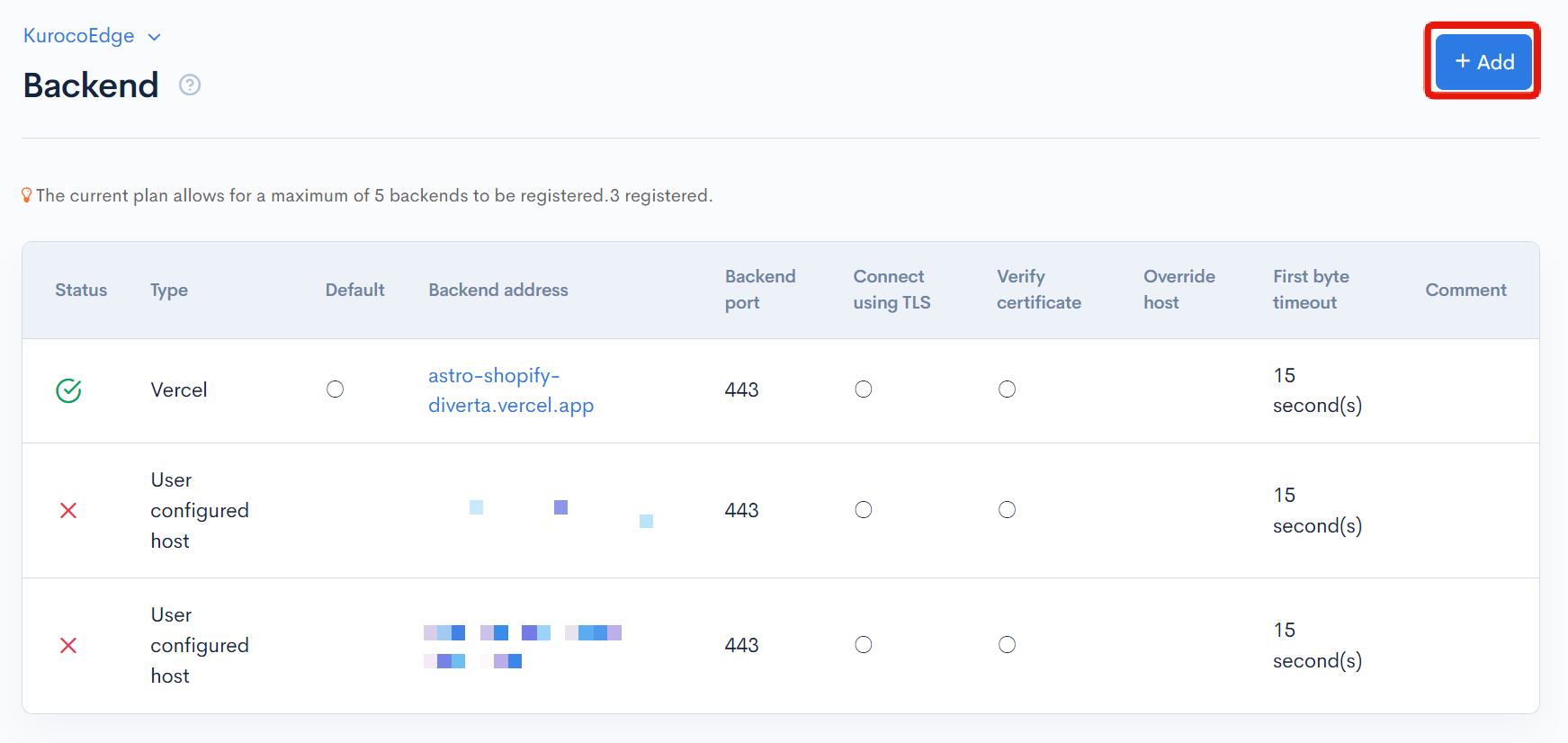
The user can add new backend hosts by clicking the "Add" button.
| Item | Description |
|---|---|
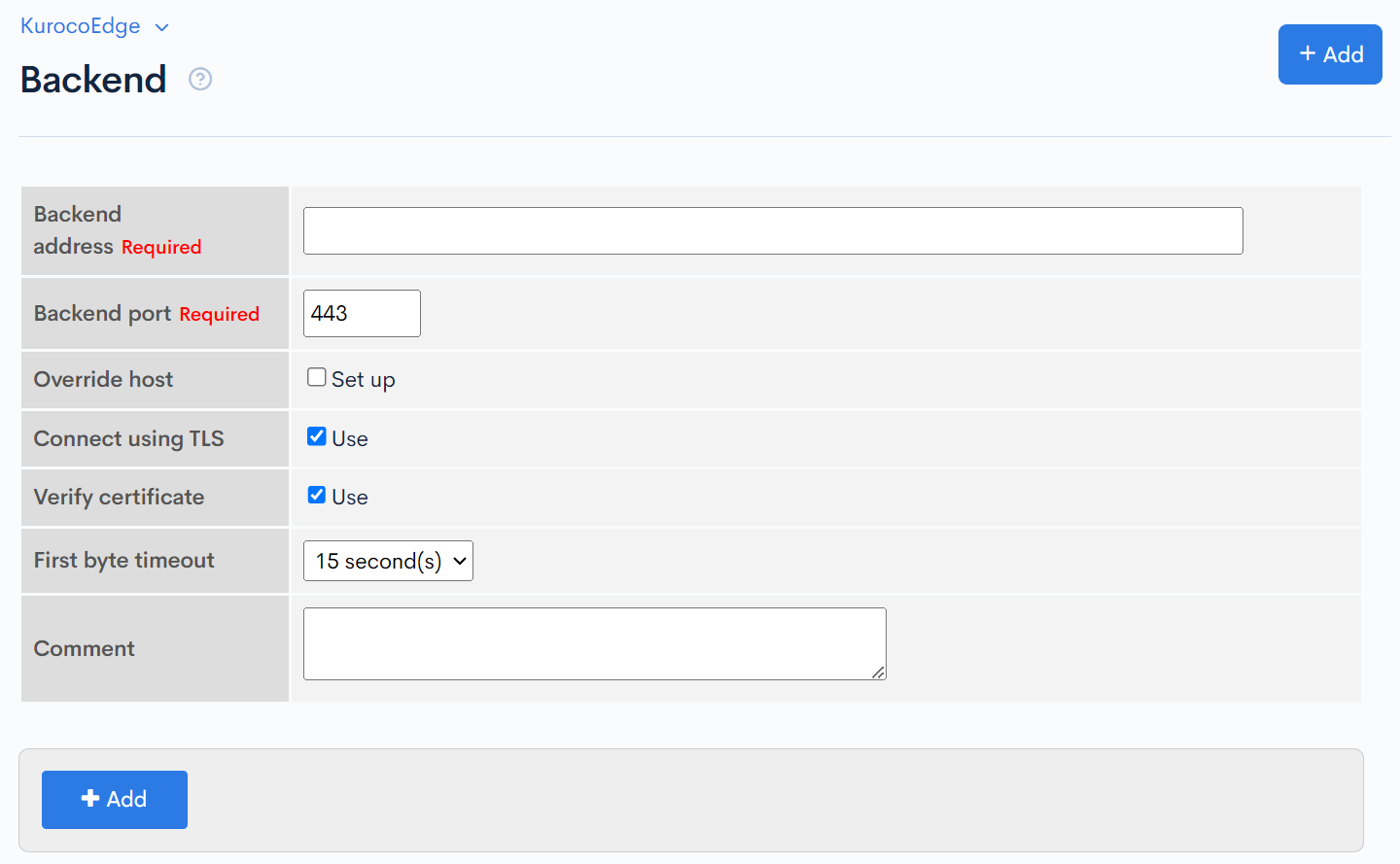
| Backend Address | URL or IP address of the host |
| Backend Port | Host Port number set to 443 by default |
| Override Host | By checking the checkbox, the input field of Override Host is displayed. |
| Connect using TLS | checkbox to use the TLS for connection or not |
| Verify Certificate | Checkbox to validate the domain's SSL certificate or not |
| First Byte Timeout | Maximum waiting time for a response from the Host. Default value is 15s |
| Comment | You can leave a comment as a note. |
| Add | Button to save the new host |
Edit Backend Host
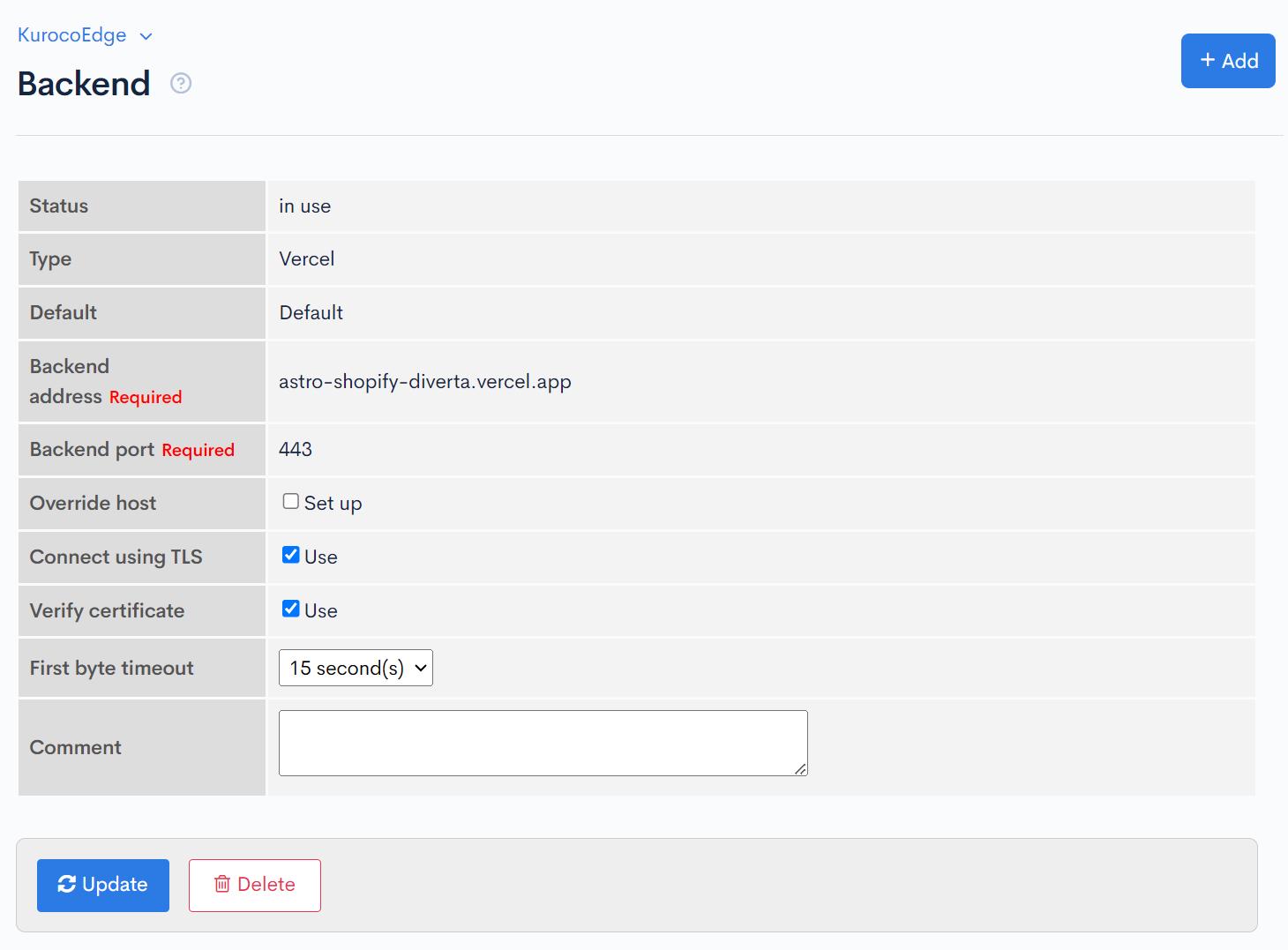
The user can update exisiting backend hosts by cliking on the link displayed under "Backend Address".
| Item | Description |
|---|---|
| Status | It will show whether it is being used active deployed version or not. |
| Type | Host provider name or type automatically assigned after creating Host |
| Default | The current default host will be marked "○" |
| Backend Address | URL or IP address of the host |
| Override Host | By checking the checkbox, the input field of Override Host is displayed. |
| Backend Port | Host Port number set to 443 by default |
| Connect using TLS | checkbox to use the TLS for connection or not |
| Verify Certificate | Checkbox to validate the domain's SSL certificate or not |
| First Byte Timeout | Maximum waiting time for a response from the Host. Default value is 15s |
| Comment | You can leave a comment as a note. |
| Update | Button to save the new changes made to the current Host |
| Delete | Button to delete the new changes made to the current Host |
Support
If you have any other questions, please contact us or check out Our Discord Community.