Operation Check
The user can compare the original response from their domain URLs to the response received after applying changes to a Deployment version.
Accessing the screen
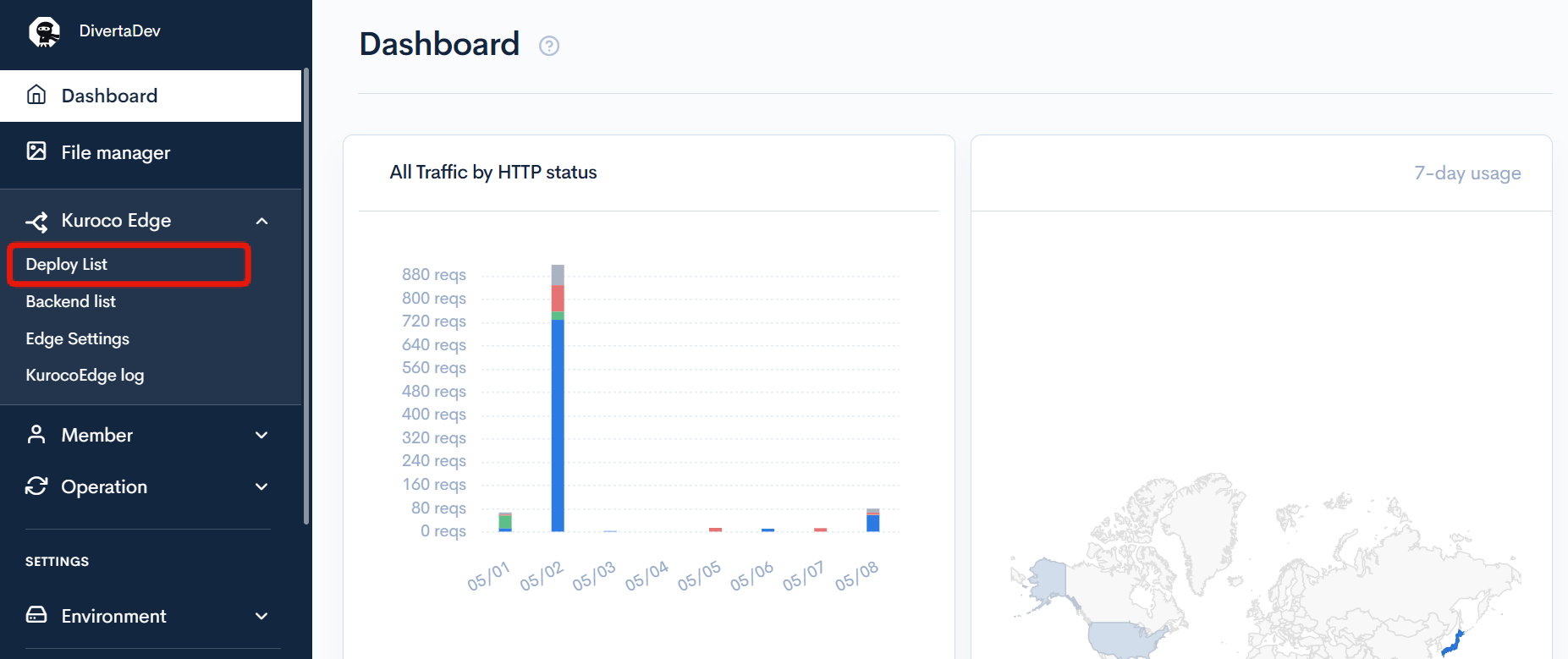
From the left sidebar menu, click KurocoEdge -> Deploy List.
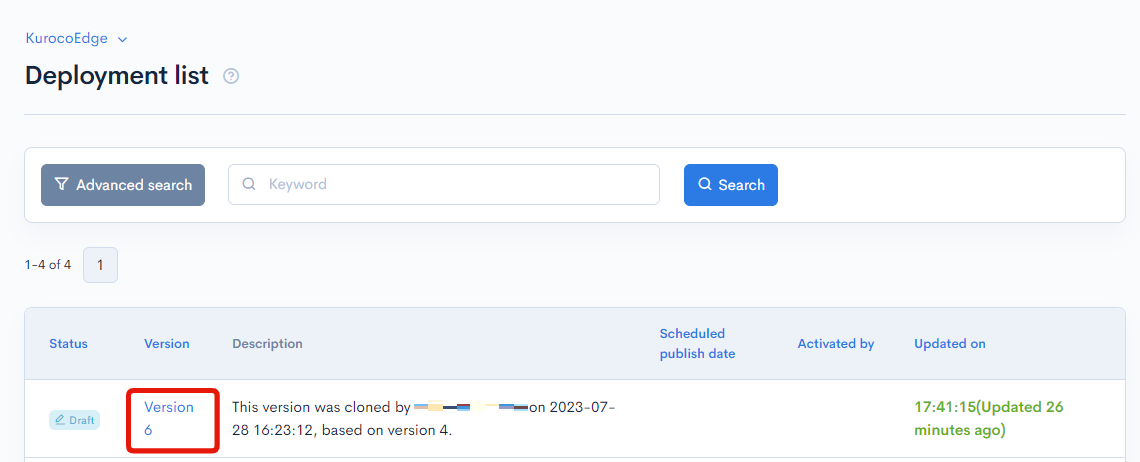
Click on a Deployment's version number to view the Rules List screen.
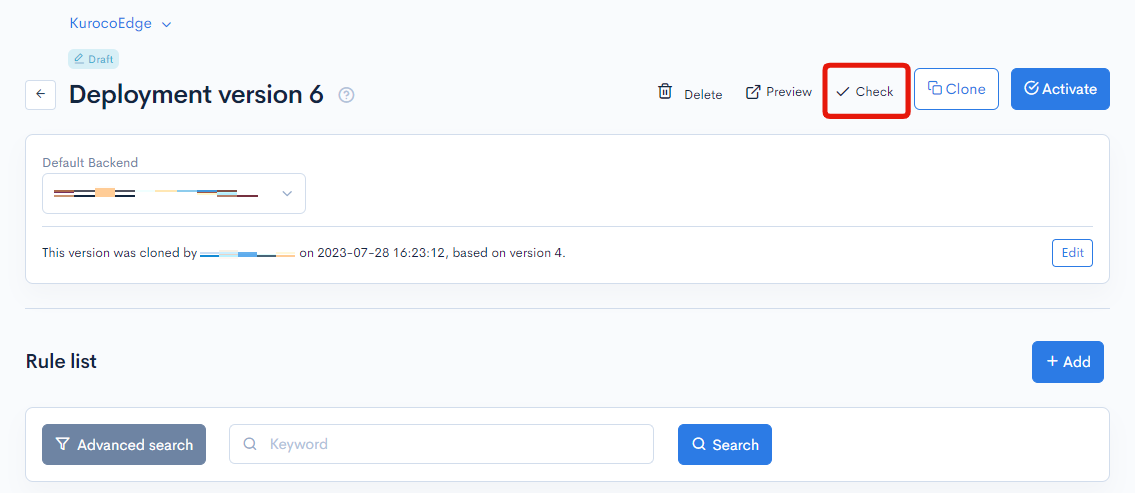
Click the Check button to view the Operation Check screen.
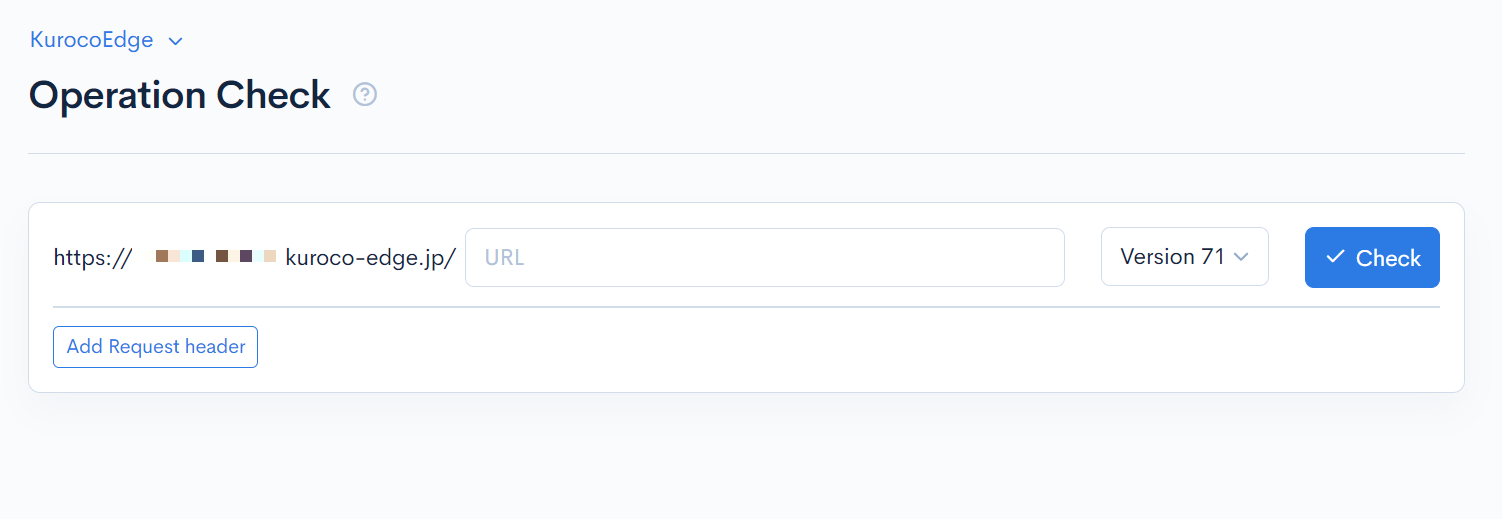
Operation Check Settings
| Item | Description |
|---|---|
| URL | Optional field to enter the path to a specific web page on the displayed domain |
| Version | Dropdown listing all versions to select one to check |
| Check | Button to execute the comparison before and after the Rule/Header Request changes |
Add Request Header
Click on "Add Request Header" to show the settings fields
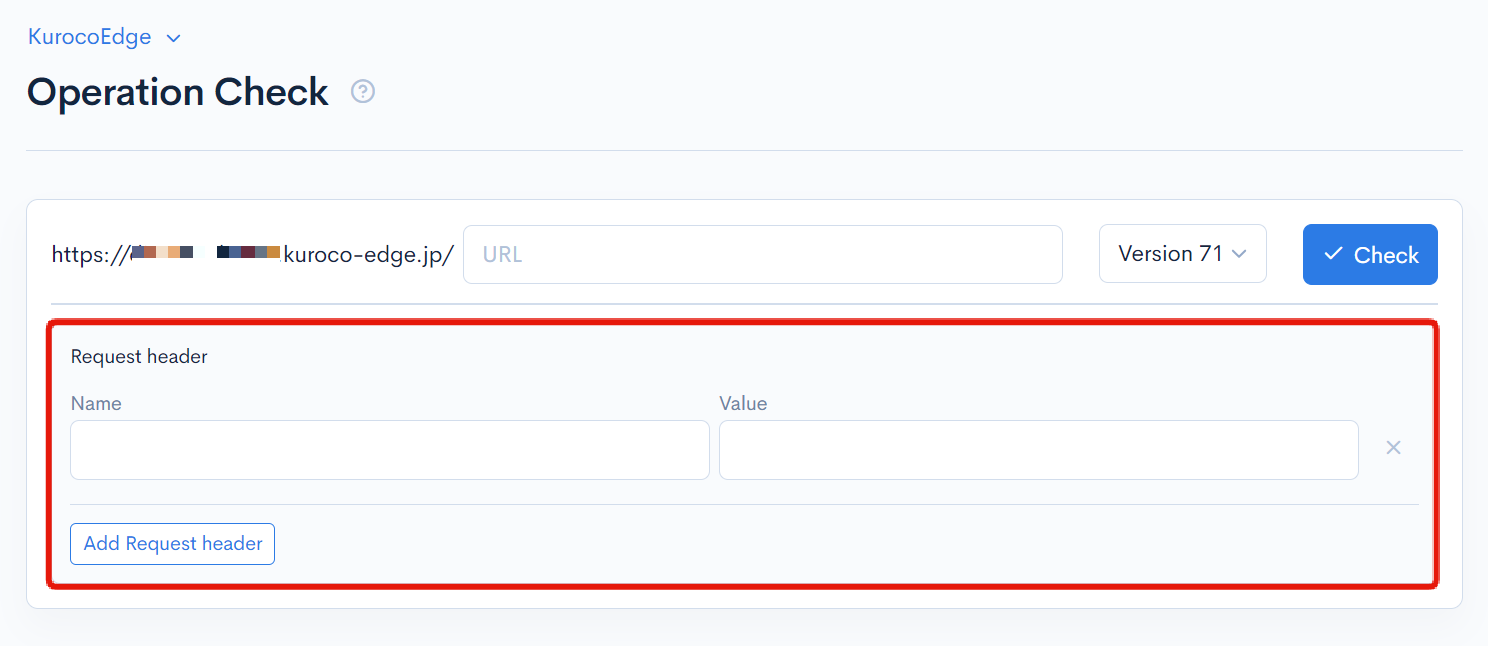
| Item | Description |
|---|---|
| Name | Dropdown displaying the available Request types |
| Value | Allows to input the Request value |
| Clear | Allows to delete a Headr Request entry |
| Add Request Header | Allows to add a blank Header Request entry |
Header and Body Previews
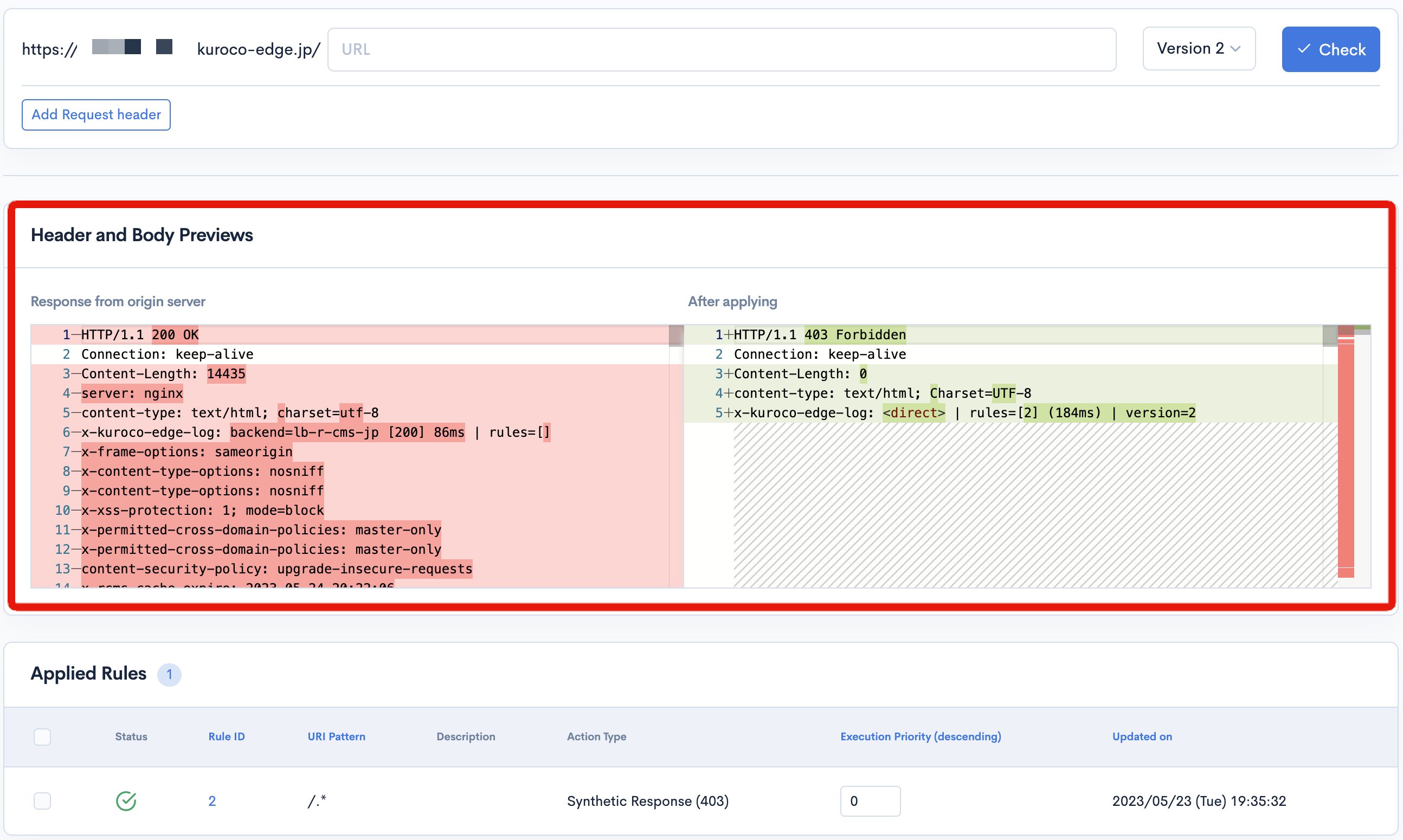
| Field | Description |
|---|---|
| Response from origin server | Original response from the selected URL without the changes made via KurocoEdge |
| After applying | Preview of the response after applying the Rule/Header Request changes in the selected Deployment |
Applied Rules List
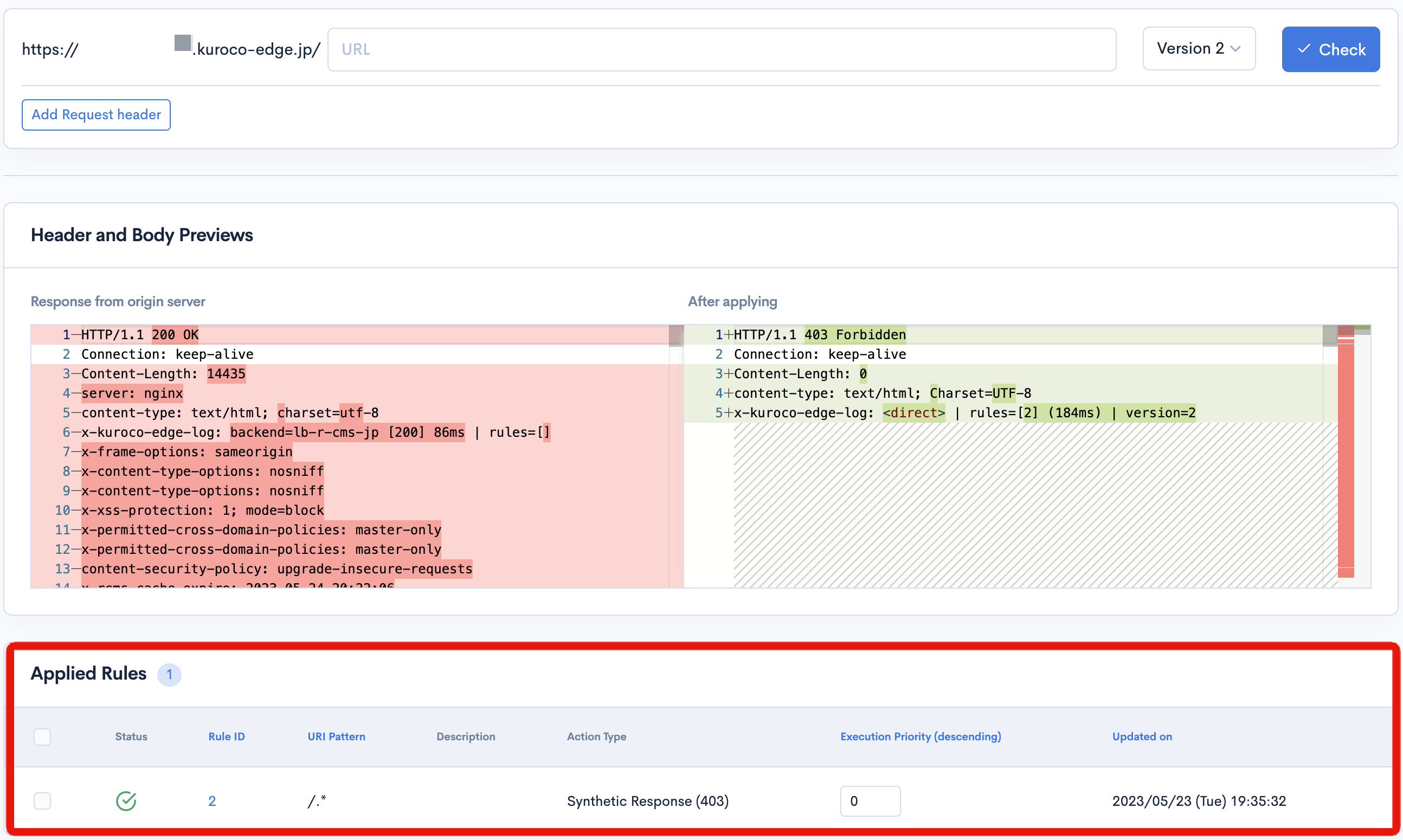
| Field | Description |
|---|---|
| Status | Displays enabled or disabled icon for each Rule |
| Rule ID | Displays the identifier automatically assigned to each Rule. The user can access the Rule Editor by clicking on the ID |
| URI Pattern | Displays the URI prefix set by the user |
| Description | Displays the Rule's description if set by the user |
| Action Type | Displays the Action type and name |
| Execution Priority | Displays the Rule's priority as manually set by the user. A lower numeric value is higher in priority |
| Updated On | Displays the timestamp of the latest modification made to the rule |
Support
If you have any other questions, please contact us or check out Our Discord Community.