Changing the Display of a Sample Site
Estimated Time: 5 minutes
Overview
KurocoEdge is a service that allows adding various functionalities to any website without modifying the existing system. As a beginner's guide, we have prepared the following three steps:
- Changing the Display of a Sample Site
- Changing the Display of Your Website
- Integrating KurocoEdge
In this tutorial, we will edit the following sample site prepared by Diverta from your KurocoEdge account.
https://astro-shopify-diverta.vercel.app/
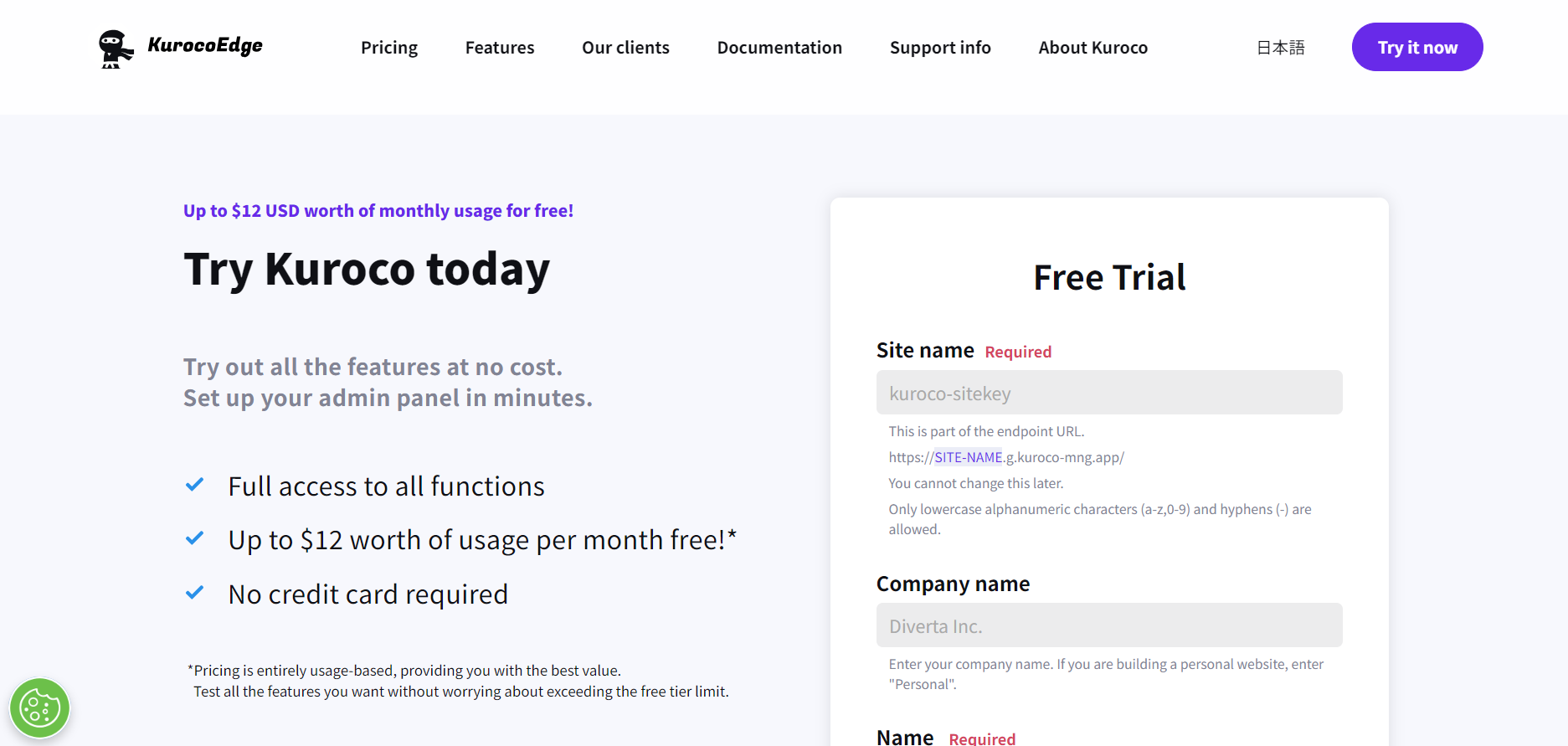
Apply for a Free Trial
First, apply for the Kuroco free trial. Select a region and enter a unique string of your choice for the site key.
An email will be sent to the registered email address, with the message "Kuroco site registration has been completed!".
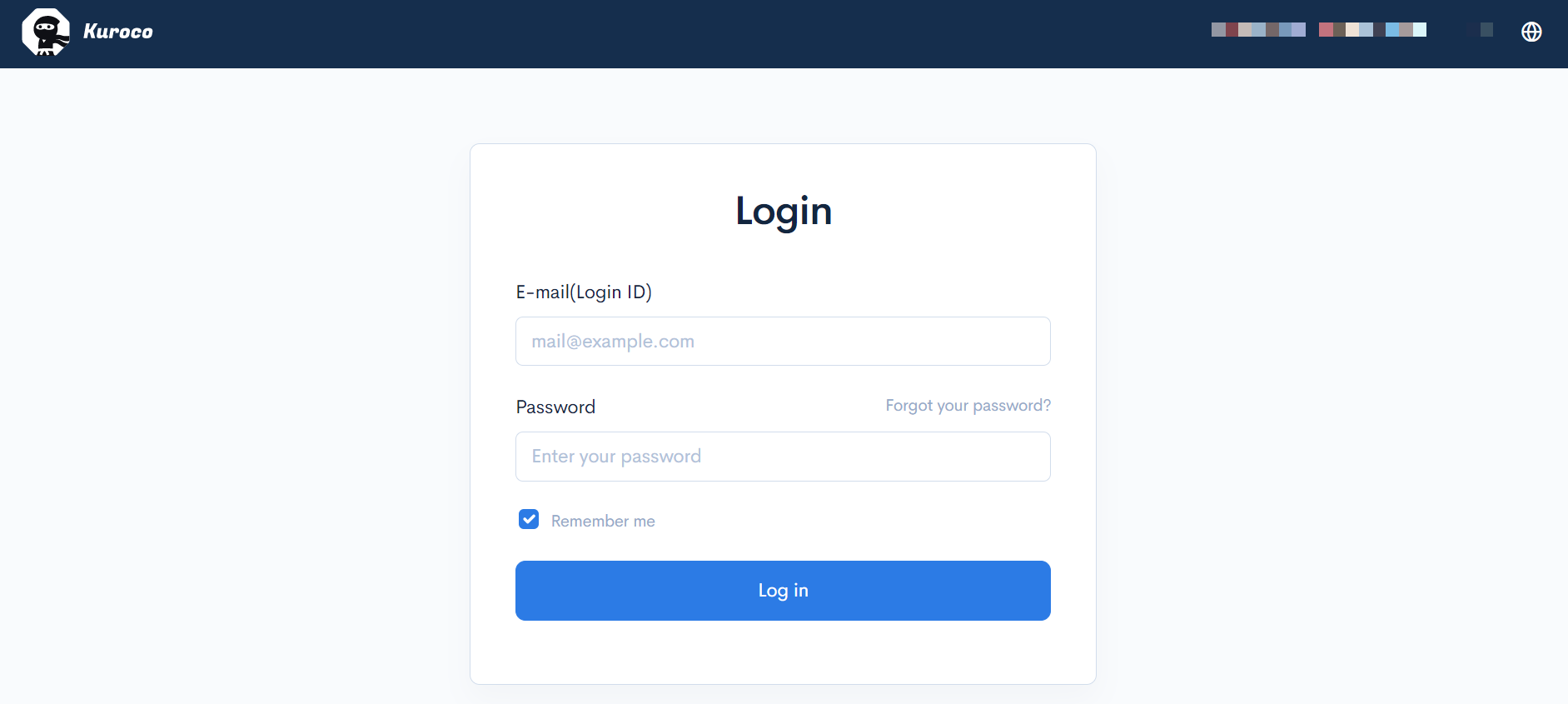
When you click the URL in the e-mail, the Kuroco login screen will be displayed. Proceed to log in with the registered e-mail address and password.
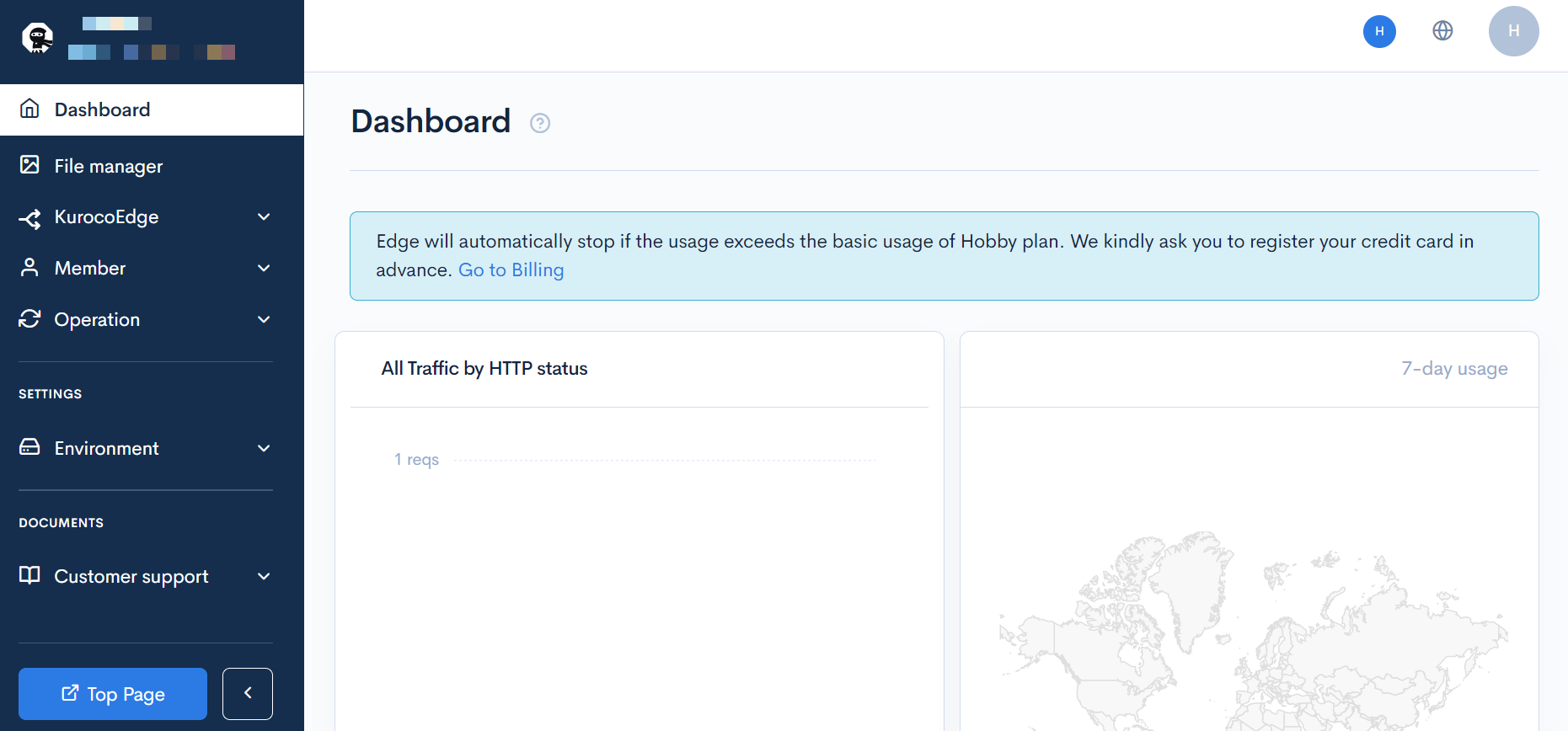
When you log in, the Kuroco Admin Panel will be displayed.
Confirm that KurocoEdge is Working
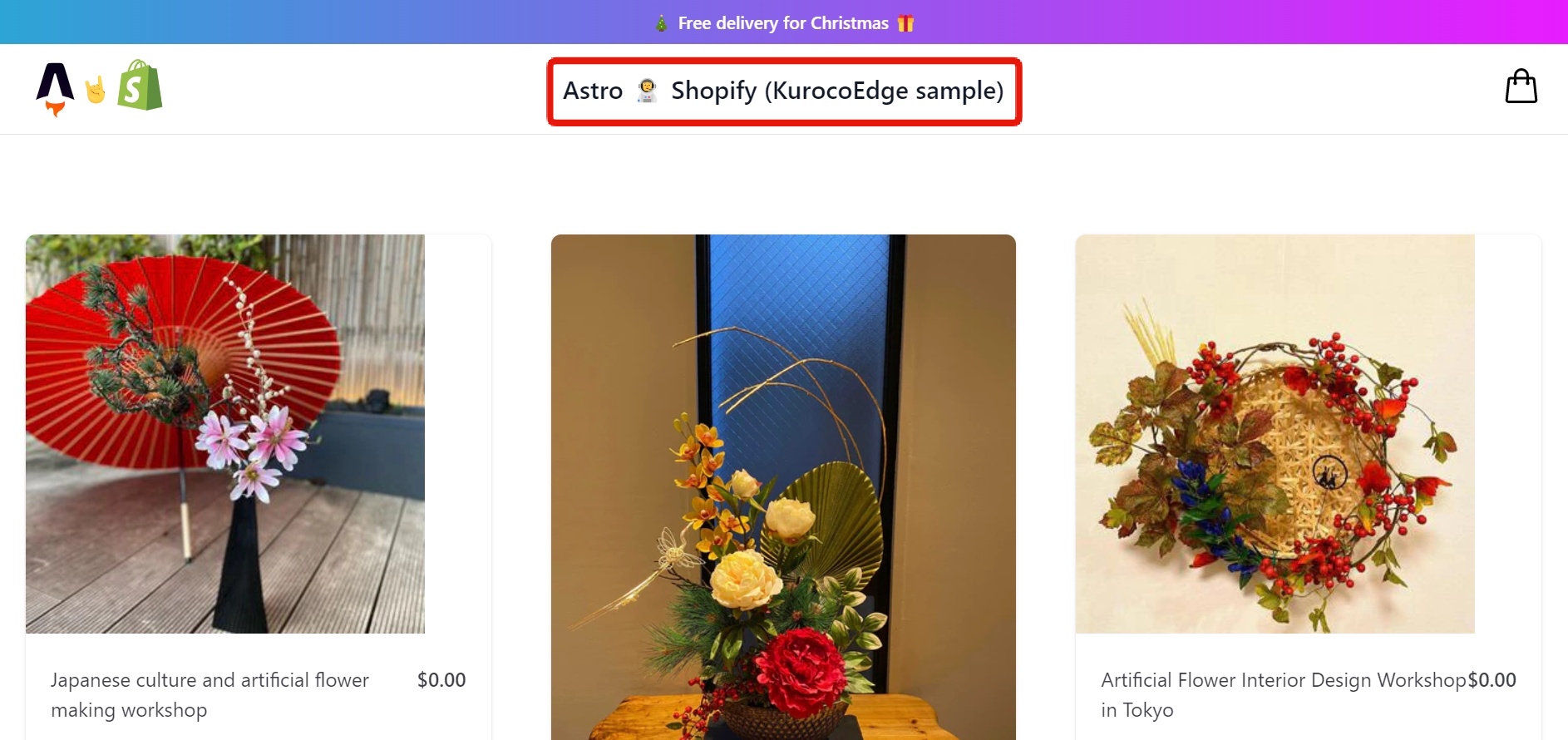
In order to check if KurocoEdge is working as intended, set a simple rule and confirm if it affects your site.
As an example, we will replace the text displayed on the website with any desired text.
we can change the display of [KurocoEdge sample] to [My First sample].
Deployment settings
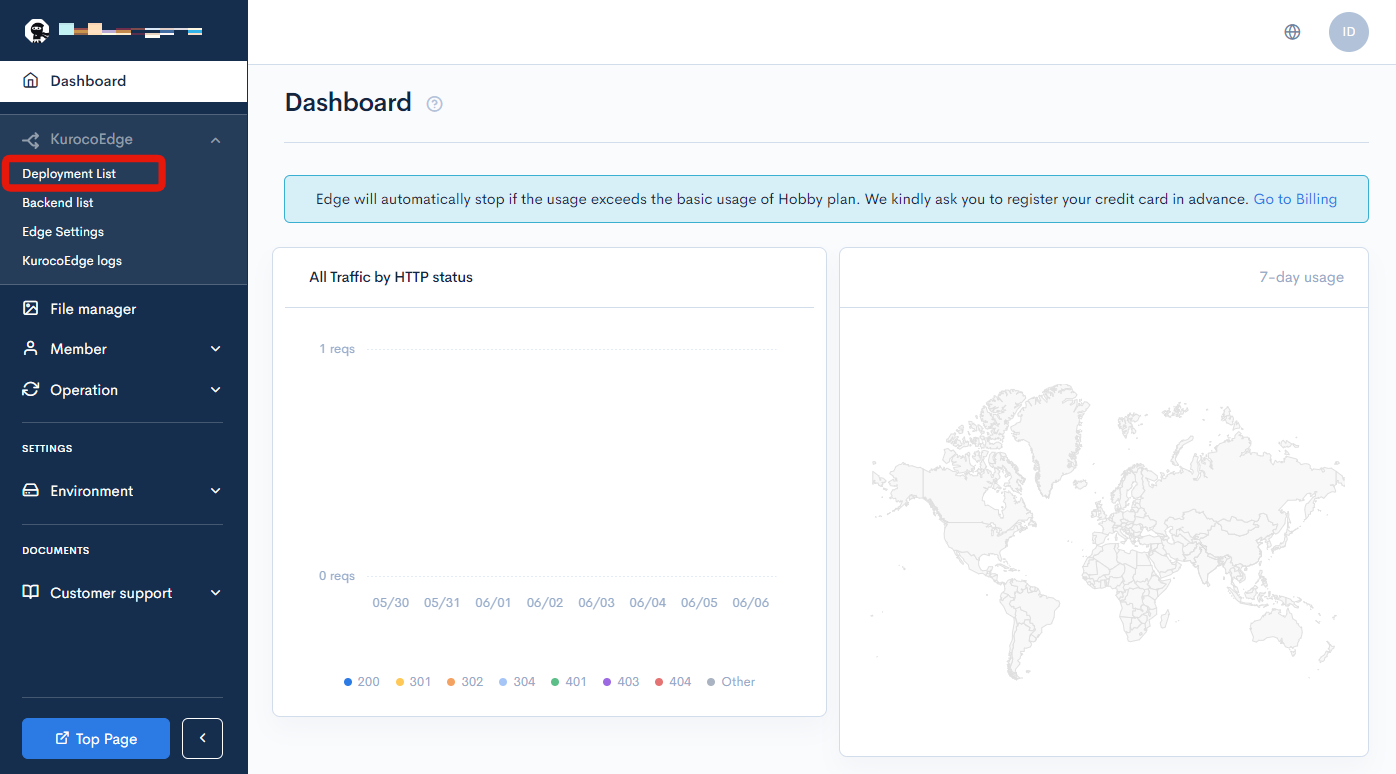
Click [KurocoEdge]->[Deployment list].
The default deployment Version 1 should be displayed:
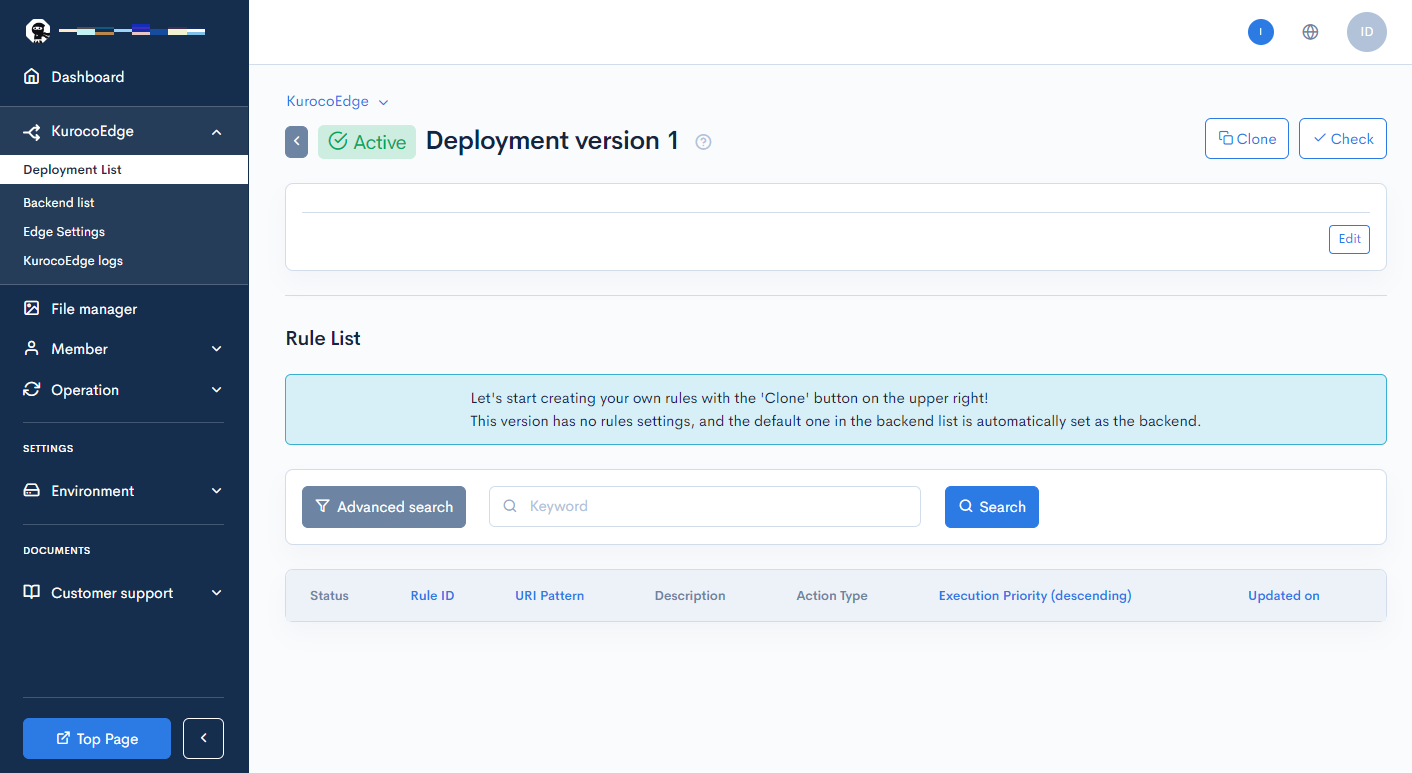
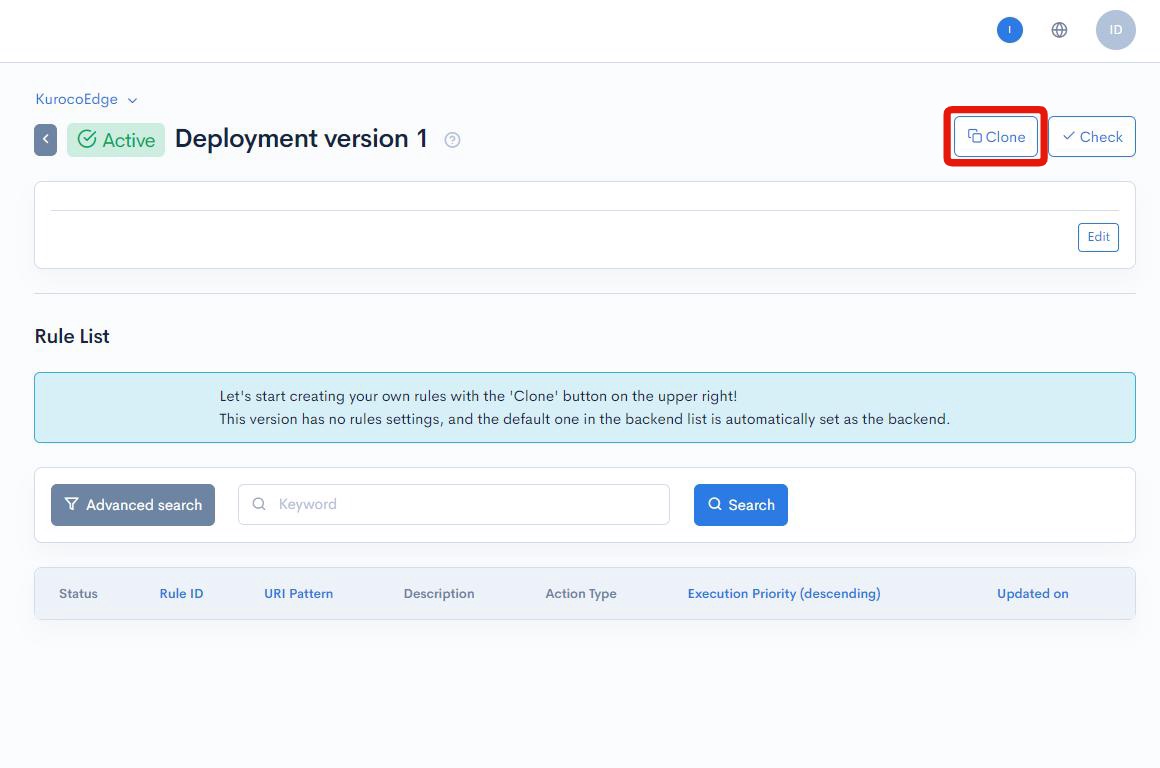
Deployments with a status of [Active] cannot be edited. First, click [Clone] to create a new draft deployment.
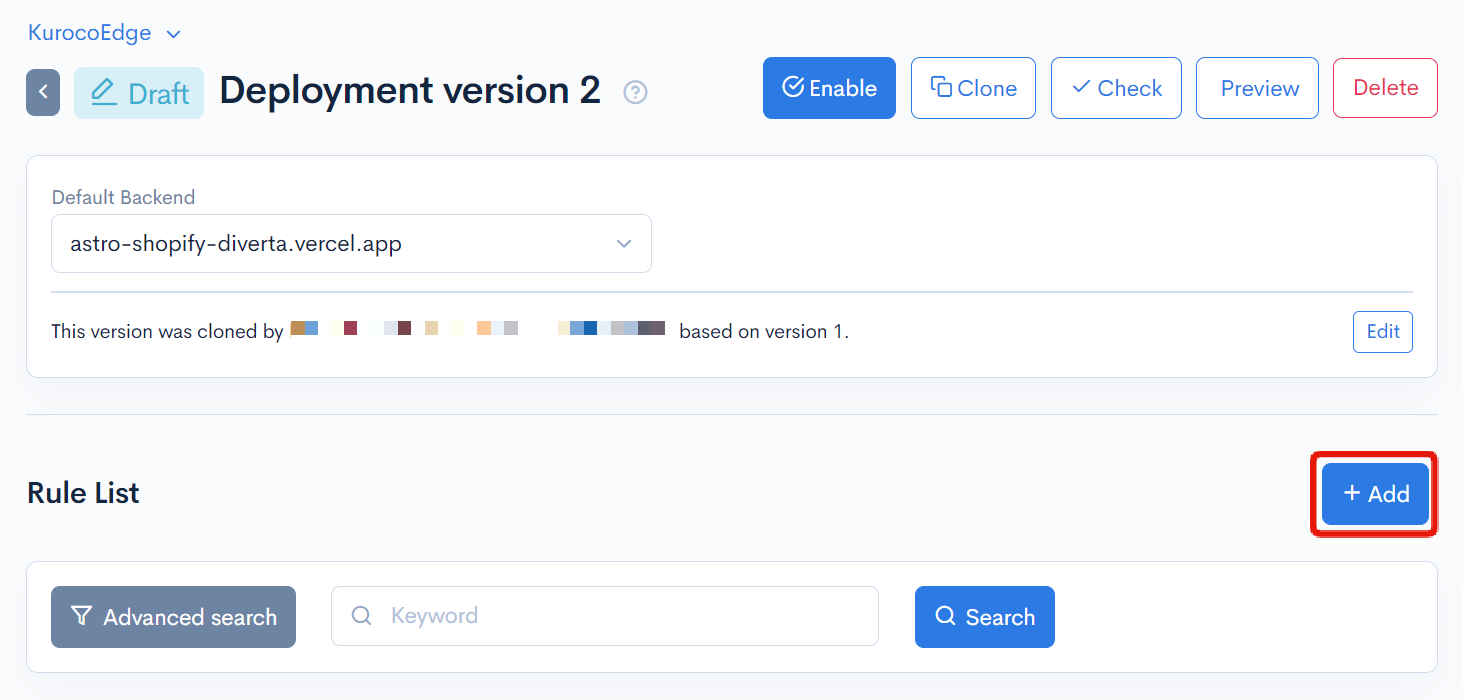
The newly cloned draft deployment will be opened – set the default backend to astro-shopify-diverta.vercel.app.
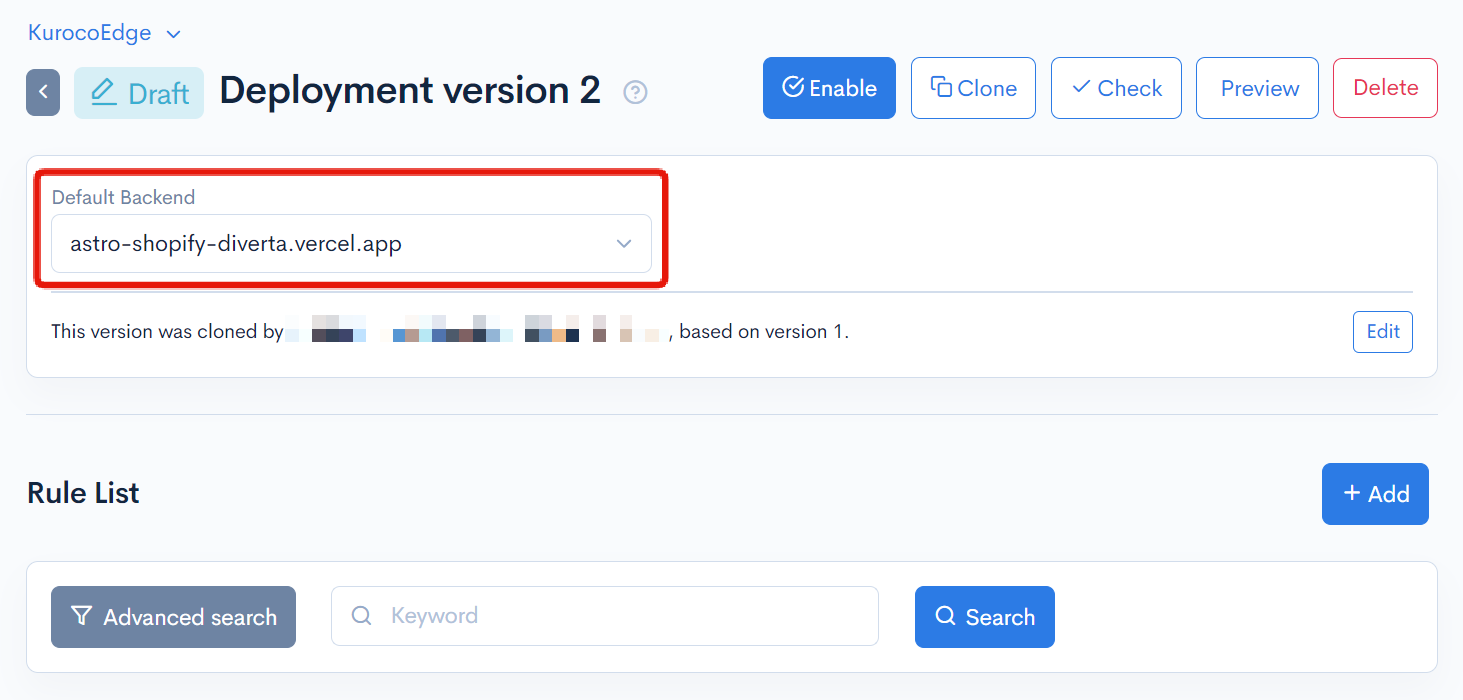
Next, click the [Add] button next to the list of rules.
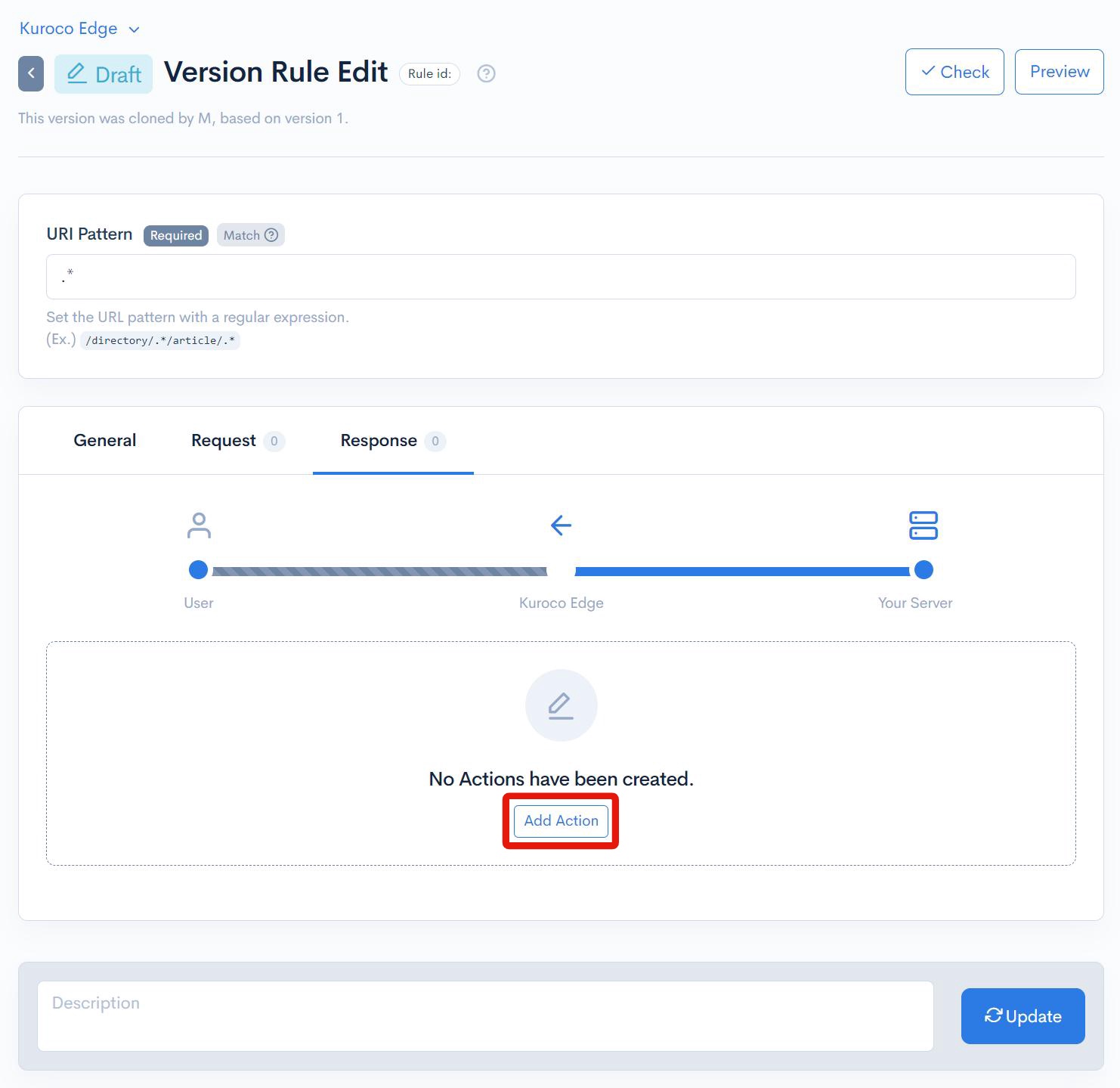
Click [Add Action] on the Response tab.
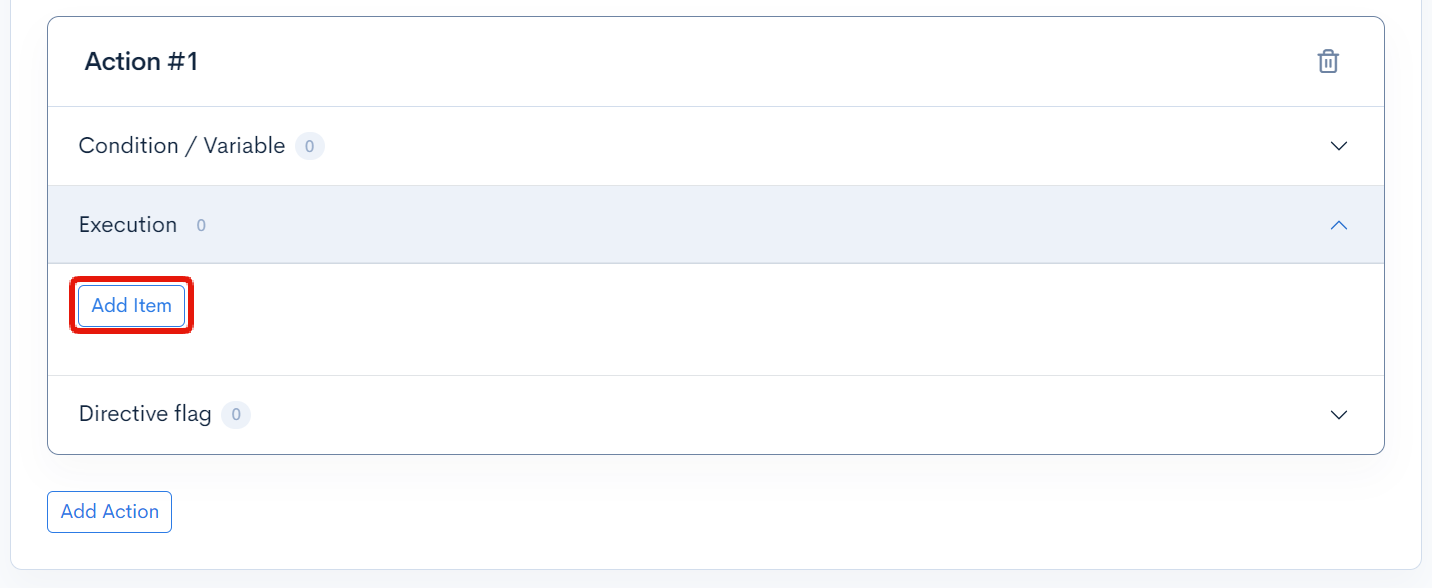
From the Execution that opens, open the Settings dropdown menu and click [Add Item].
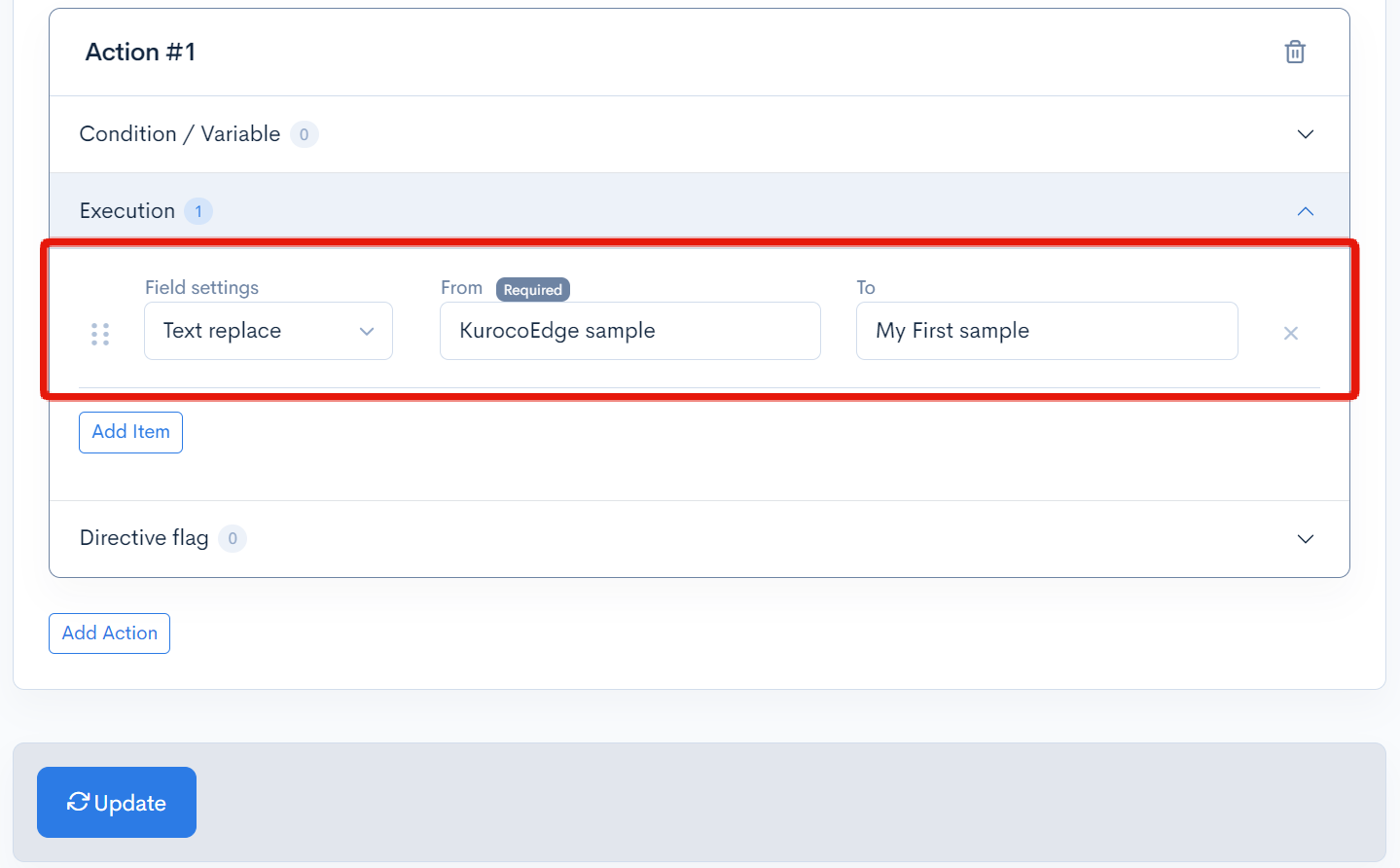
Configure the settings as follows and click [Update]:
| Item | Value |
|---|---|
| Processing | Replace Text |
| Before Replacement | KurocoEdge sample |
| After Replacement | My First sample |
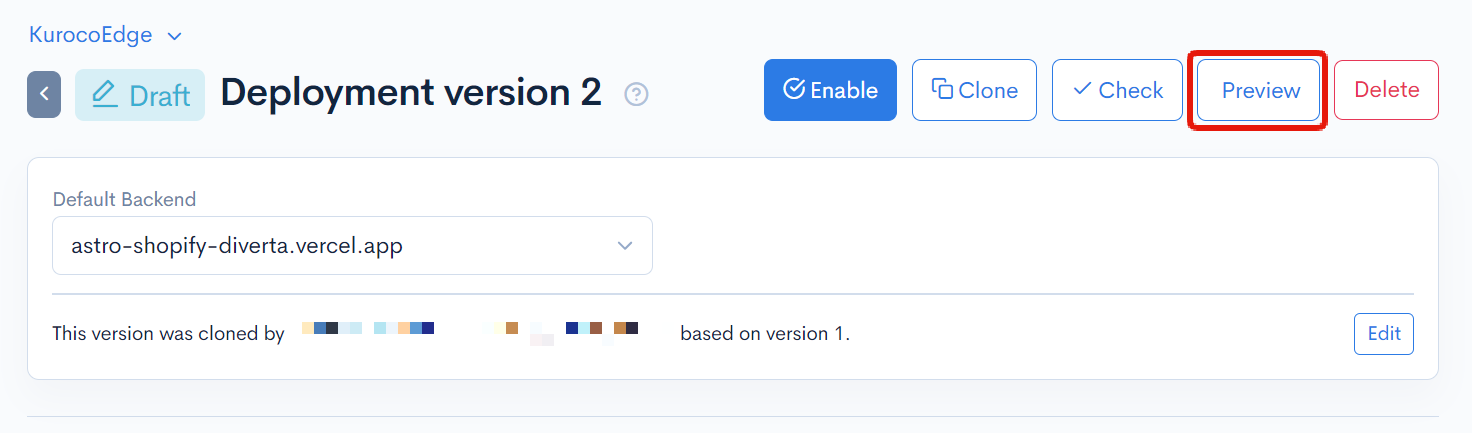
When you have finished configuring the settings, click [Preview] to confirm that the added rules are being applied as expected:
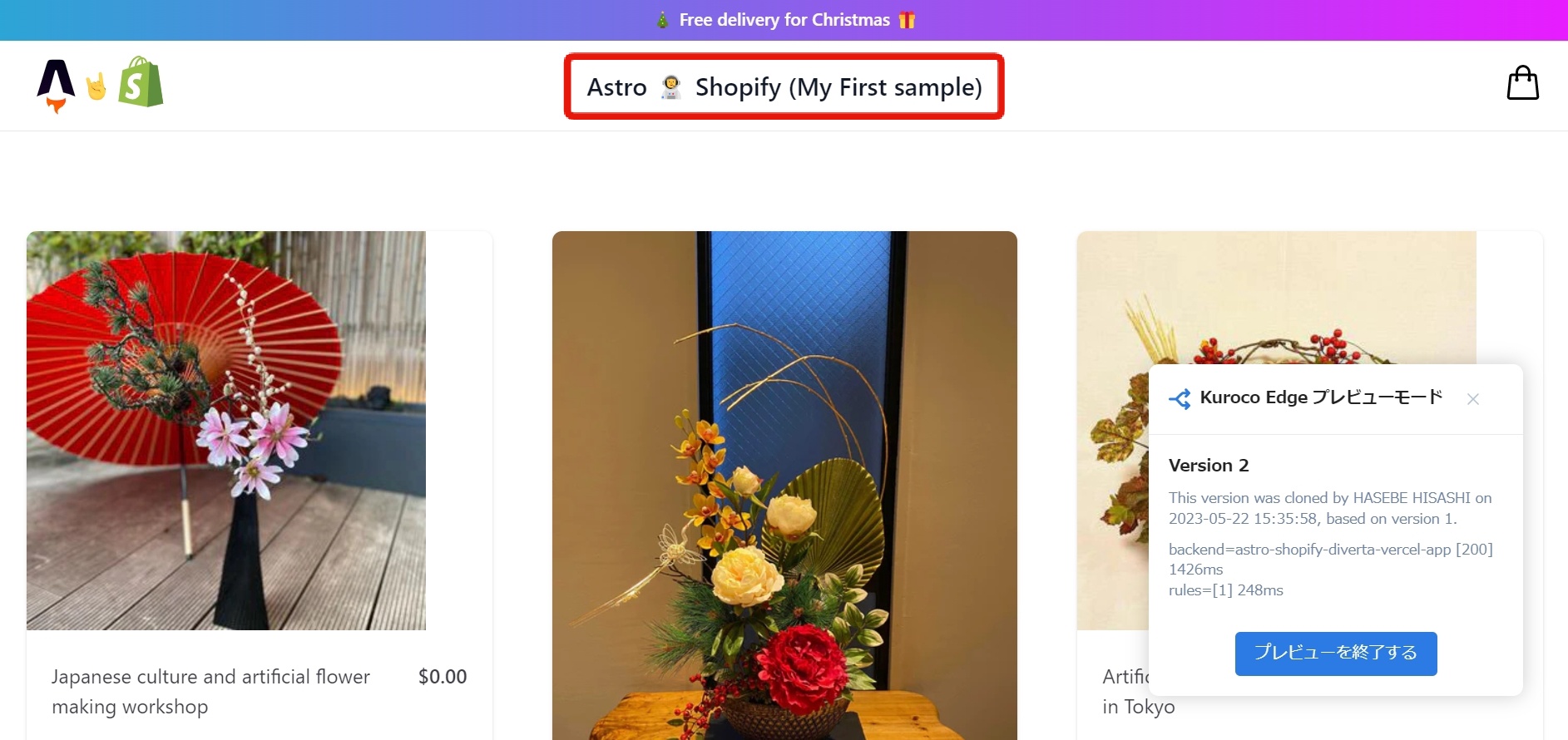
We can see that 'KurocoEdge sample' is now being displayed in 'My First sample'.
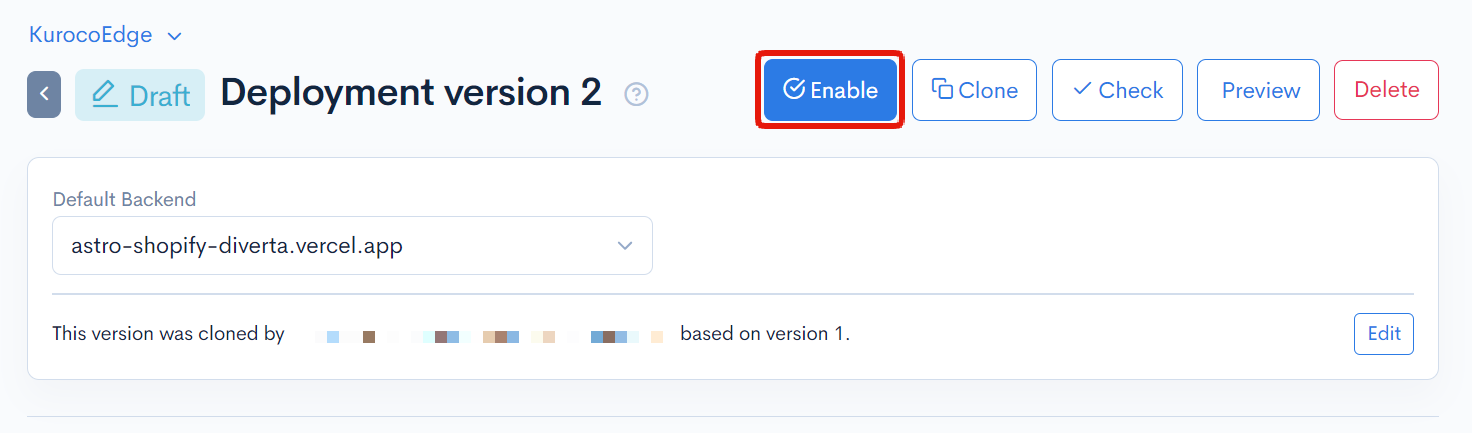
If everything is working as expected, click [Enable] to complete the settings.
Editing is now locked and the deployment is enabled.
Summary
With the above steps, you have confirmed the operation of KurocoEdge.
In this way, you can adjust the display of a website from KurocoEdge without making any edits on the existing site (https://astro-shopify-diverta.vercel.app/).
Next, let's adjust the display of your own site.
Support
If you have any other questions, please contact us or check out Our Discord Community.