How to set up URL Redirect
Overview
A common use case for edge computing on the web is simple URL redirects, without having to make any changes to your site's source code.
This tutorial explains how to easily set up a URL redirect operation in KurocoEdge.
What You'll Learn
You can set up a URL redirect in KurocoEdge by following the steps below:
Create a URL Redirect Rule
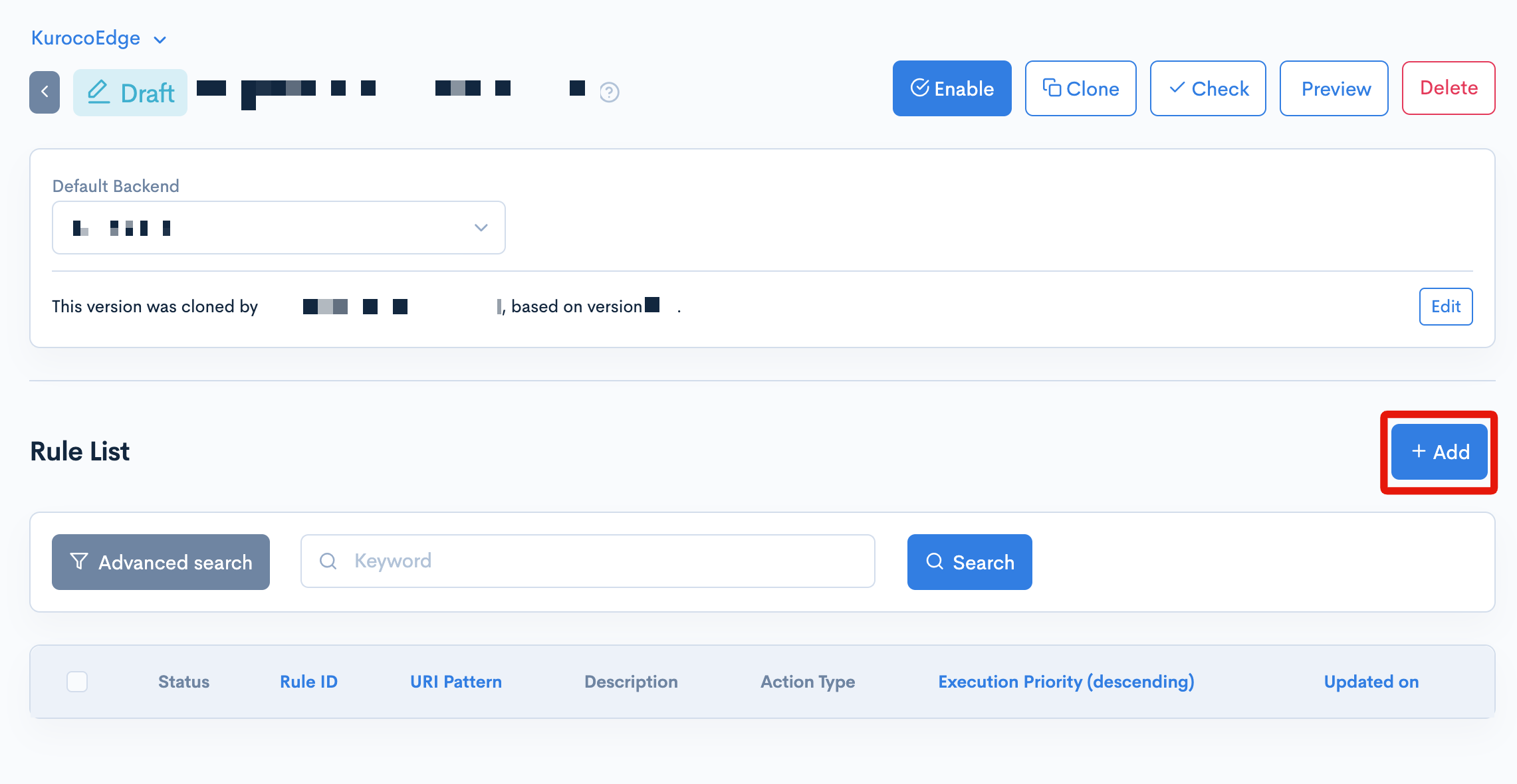
Within an editable draft deployment version of your site, begin by clicking the [+Add] button in the 'Rules List' section to create a new rule:
To set up the URL redirect operation, you first need to target the URI that you want to apply the redirect to. This is done by entering the value into the 'URI Prefix' field inside the 'General' tab of this rule. For this example, we will target the /en/about/ URI, corresponding to the 'About' page on the Diverta corporate website:
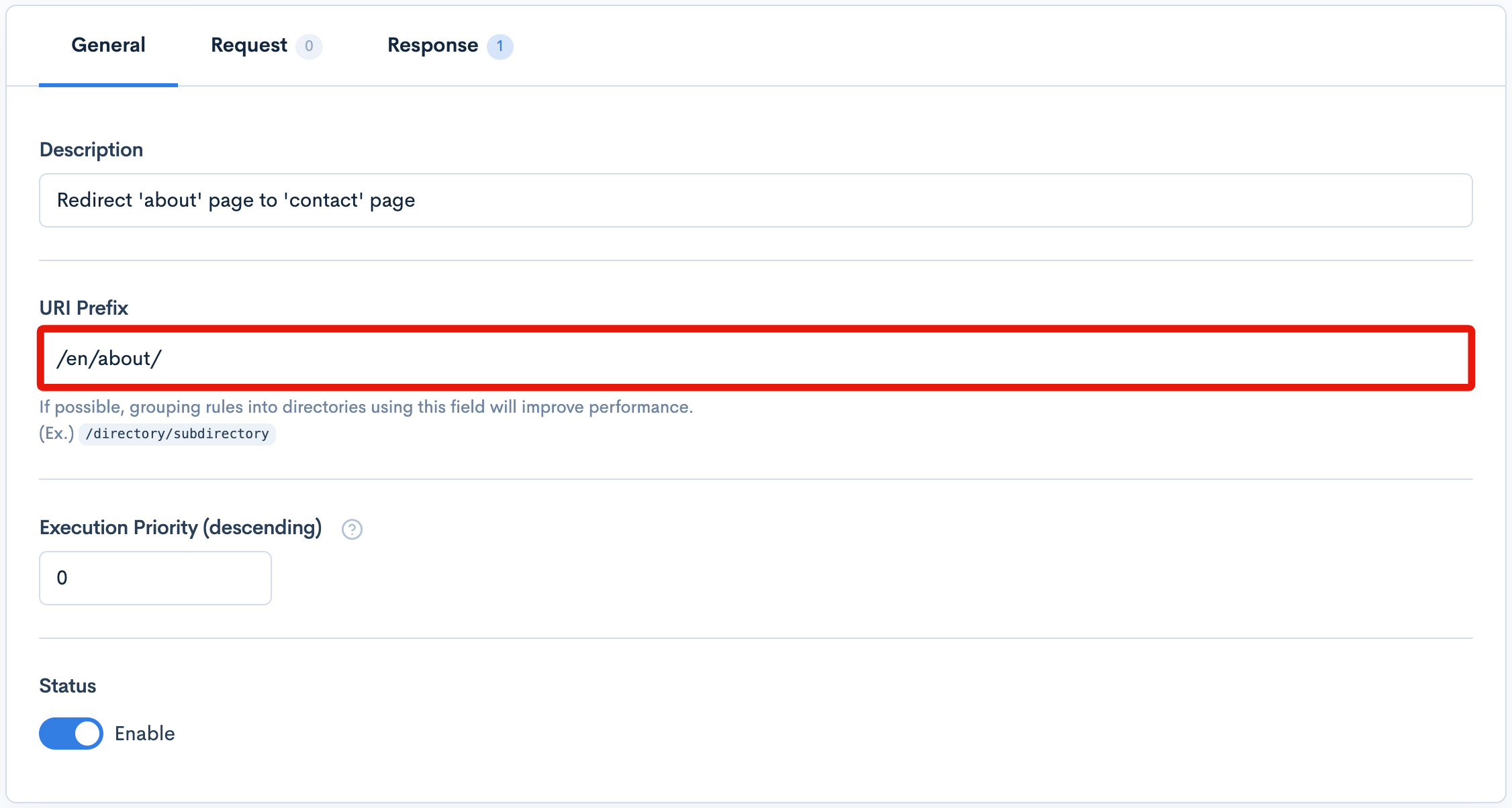
It is possible to target whichever specific directory/page you want, using the standard URI format /directory/subdirectory/page
Next, click on rule's the 'Response' tab, then click the [Add Action] button to create a new action. Within the 'Execution' dropdown menu click the [Add item] button:
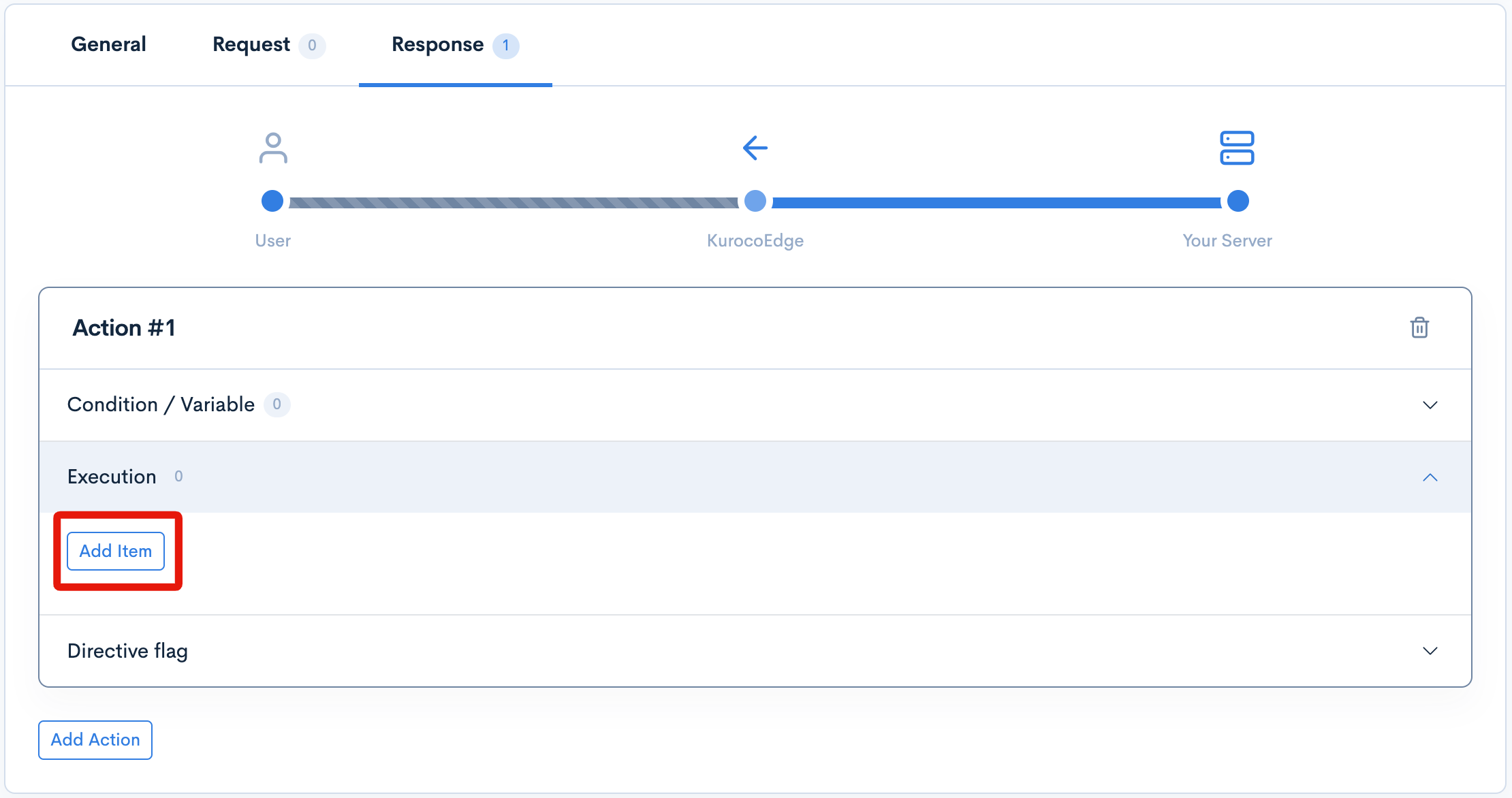
This will display the 'Execution' section's options for this action. In the select/dropdown element, select the [Redirect url] option, then proceed to fill in the following fields that are displayed:
| Item | Value |
|---|---|
| Field settings | Selecting the 'Redirect url' option is required for this operation. |
| HTTP Status | You can select either '301 Permanent Redirect' or '302 Temporary Redirect' (to learn more about the differences between a 301 and 302 status, click on the links). It is required to select one of the status options. |
| URL | Enter in the URL that you wish to redirect to. |
In our example, we want to redirect the /en/about/ URL to /en/contact/, so we will enter the latter into the URL field. Our settings for this section are shown as follows:
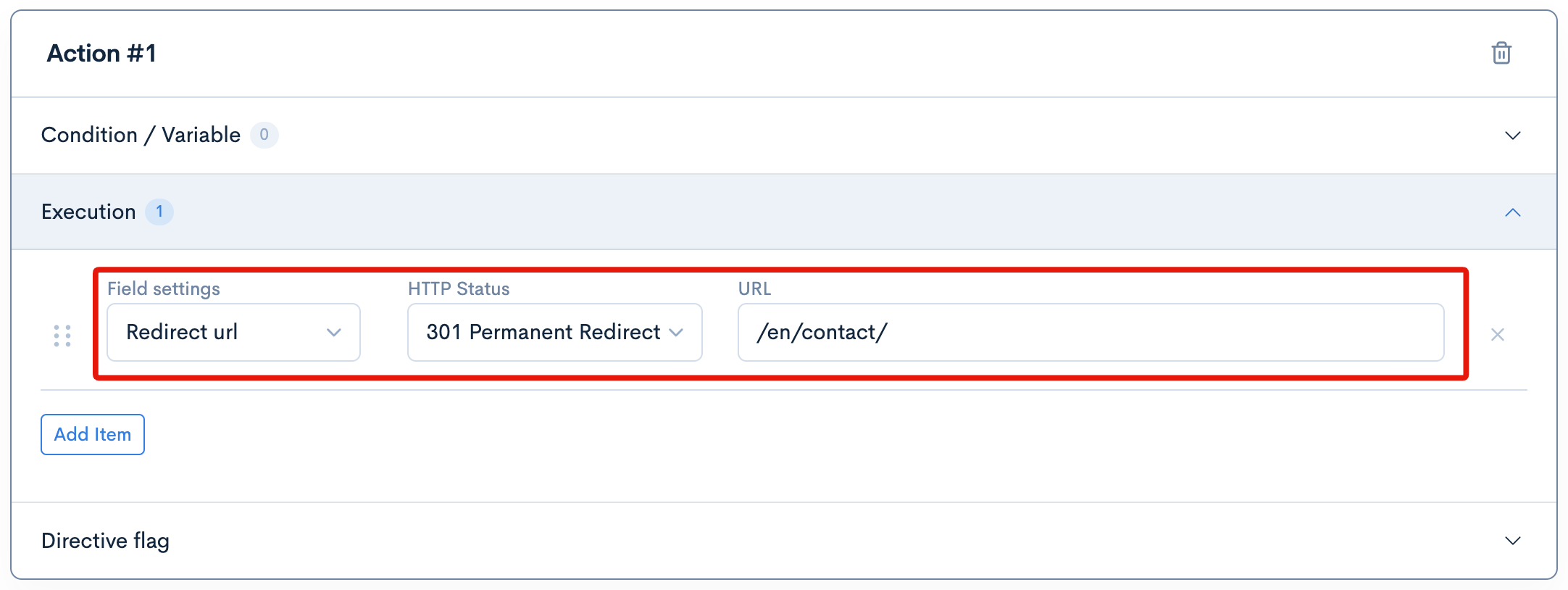
Once you have completed the desired settings for this section, click the [Update] button at the bottom left of the page to save the changes.
Confirm that the URL Redirect is Working
To confirm that the URL redirect is working as intended, first click on the [Preview] button at the top-right of the KurocoEdge Admin Panel to open up a preview of your site in a new tab in your broswer.
The simplest way to verify that the redirect is working is to navigate to the page that you set the redirect rule to (in our case in this example, we will visit the 'About' page located at /en/about/). The page should redirect automatically – in our case to the 'Contact' page (located at /en/contact/)
You can also right-click on the page and enter the development console, then go to the 'Network' tab. You should see the page that the redirect rule was applied to, with a 301 (or 302) status:

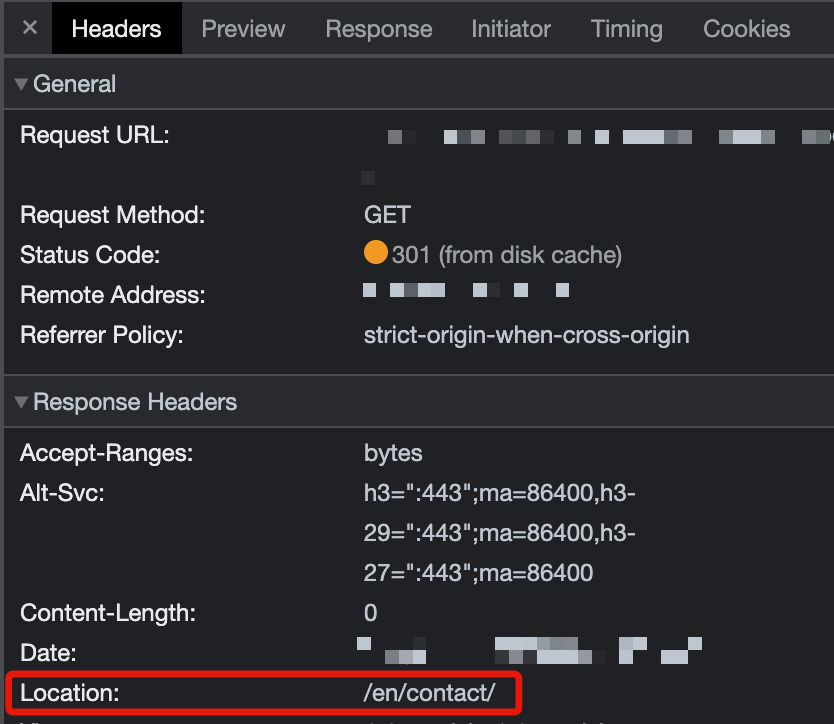
When you click on the page wth the 301 (or 302) status, within the 'Headers' tab you should be able to see the Location header with the value of the URI you previously input for the redirect (for our example, we entered in /en/contact/):
Summary
At this point you have successfully verified that the URL Redirect operation has been implemented, using KurocoEdge. The advantage to this approach is that the redirect is handled by proxy 'on the edge' – with no changes required to your server's source code.
Support
If you have any other questions, please contact us or check out Our Discord Community.