Display Maintenance Page for Specific IP Addresses during Renewal
Overview
This article explains how to use KurocoEdge to display a maintenance page for all accesses except those from specific IP addresses during the renewal process. The restriction will be applied only to pages under /products/, and the maintenance page will be displayed according to the maintenance start time and lifted according to the maintenance end time.
What you'll learn
You will learn how to configure KurocoEdge to display a maintenance page for all accesses except those from specific IP addresses using the following steps:
Prerequisites
The following tutorial assumes that you have completed it and have an understanding of how to configure access restrictions based on IP addresses.
Create a deploy with access restrictions
First, create a deploy with access restrictions enabled.
Clone an existing deploy
Click [KurocoEdge]->[Deployment list].
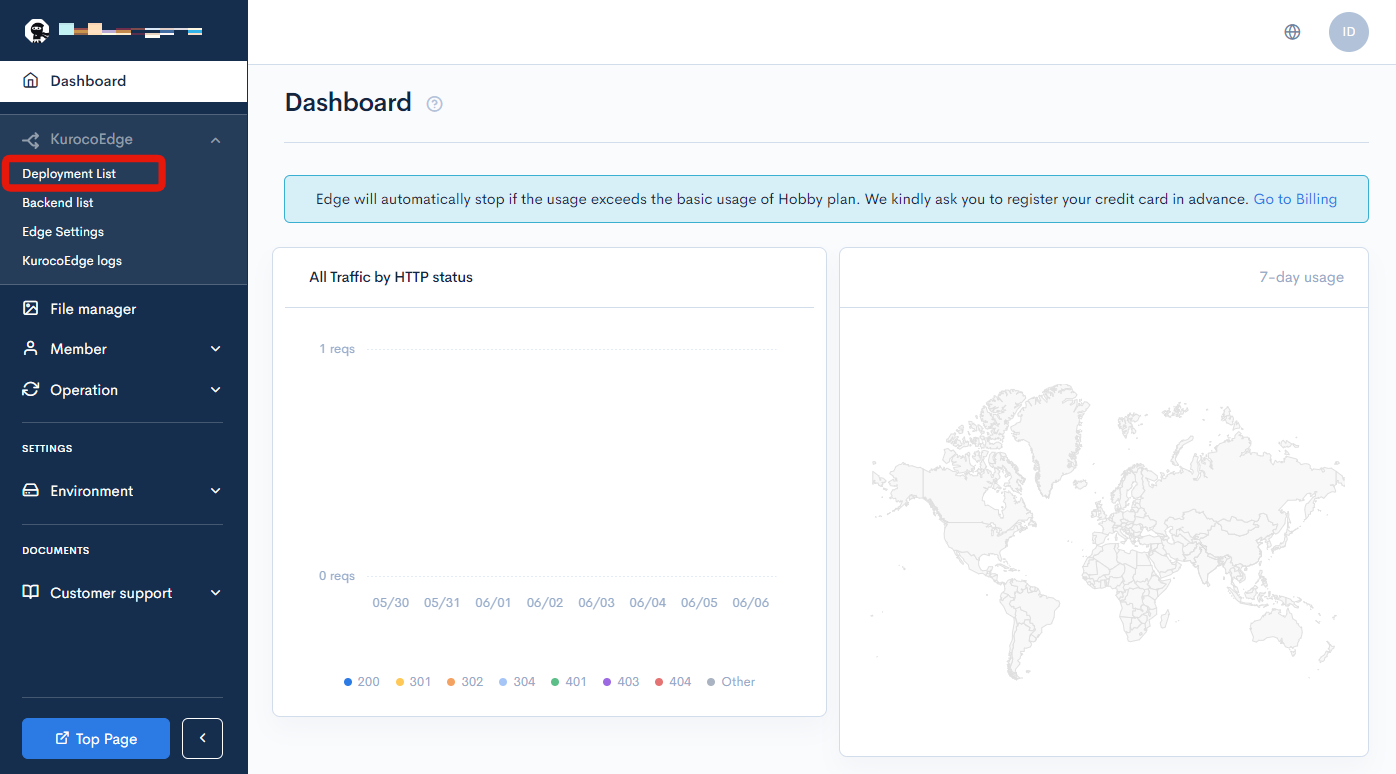
Select the draft deployment.
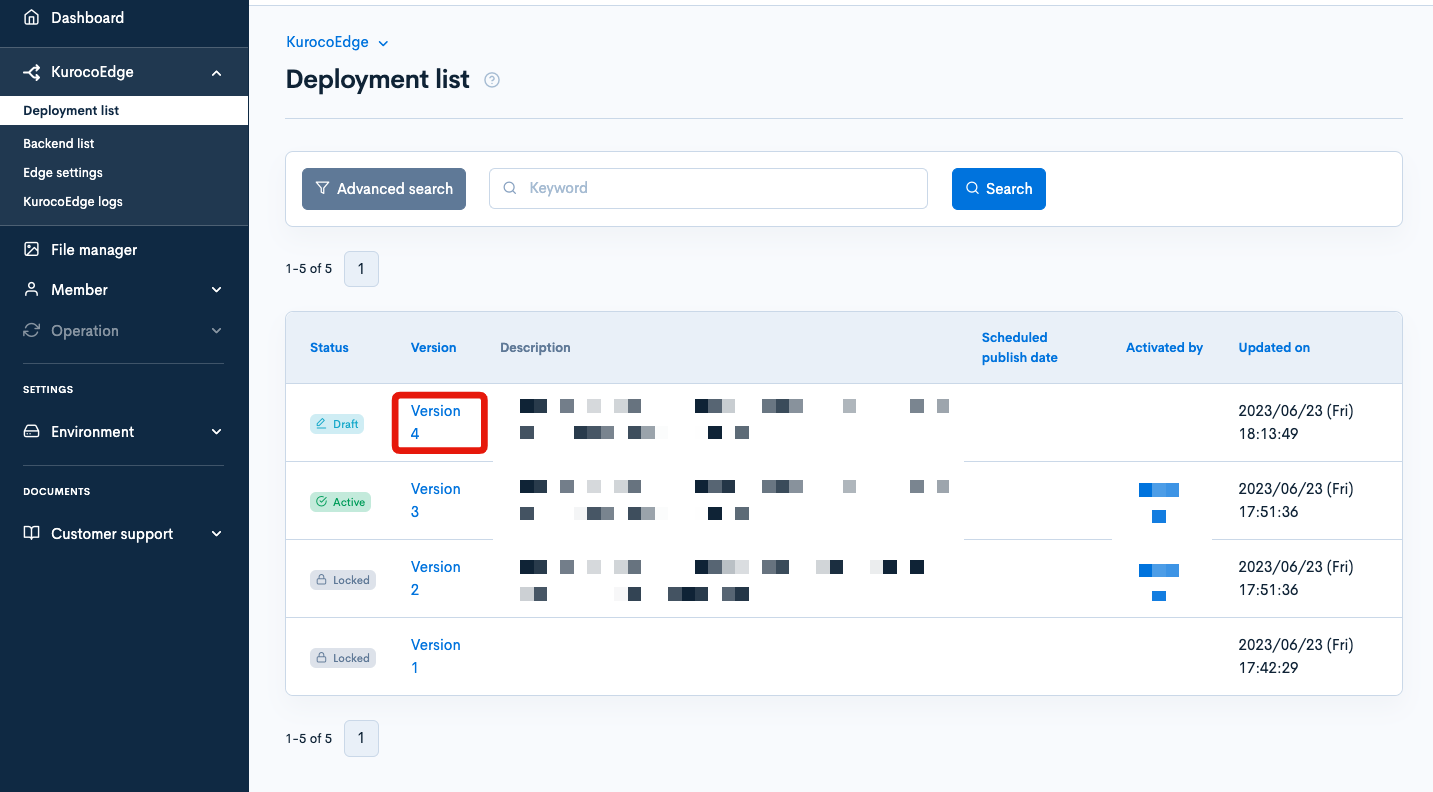
Click on [Clone] in the top right corner.

Restrict access to specific pages
By default(.*), the entire site is subject to access restrictions.
In this tutorial, as an example, we will restrict pages under /products/.
In the cloned deploy, click on the rule for access restrictions in the list of rules, and enter /products/.* in the "URL path pattern" field.
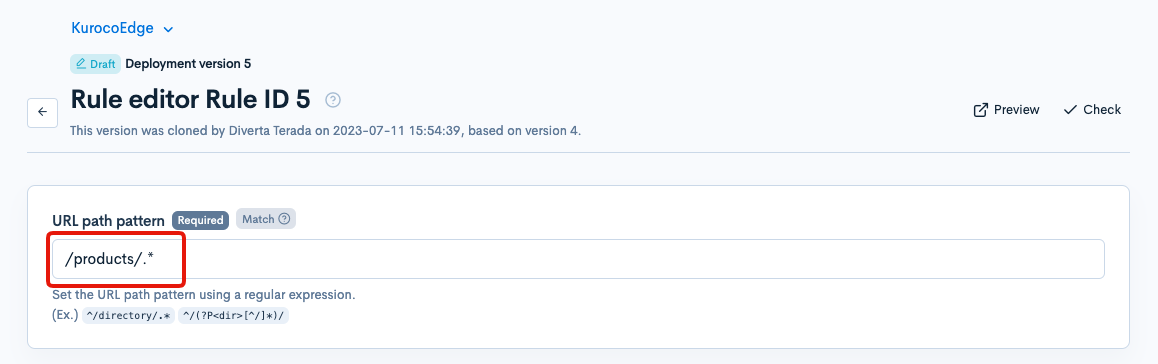
With this configuration, the maintenance page will only be displayed for pages under /products/.
Set access restriction rules
We will set up rules for IP address restrictions using a whitelist.
Click on the "Request" tab and set the rules as follows.
Conditions / Variables
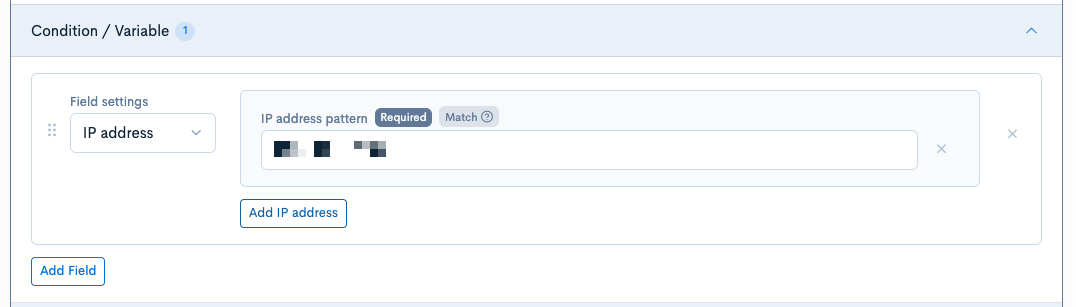
| Field | Setting |
|---|---|
| Field setting | IP address |
| IP address pattern | Allowed IP addresses |
Execution
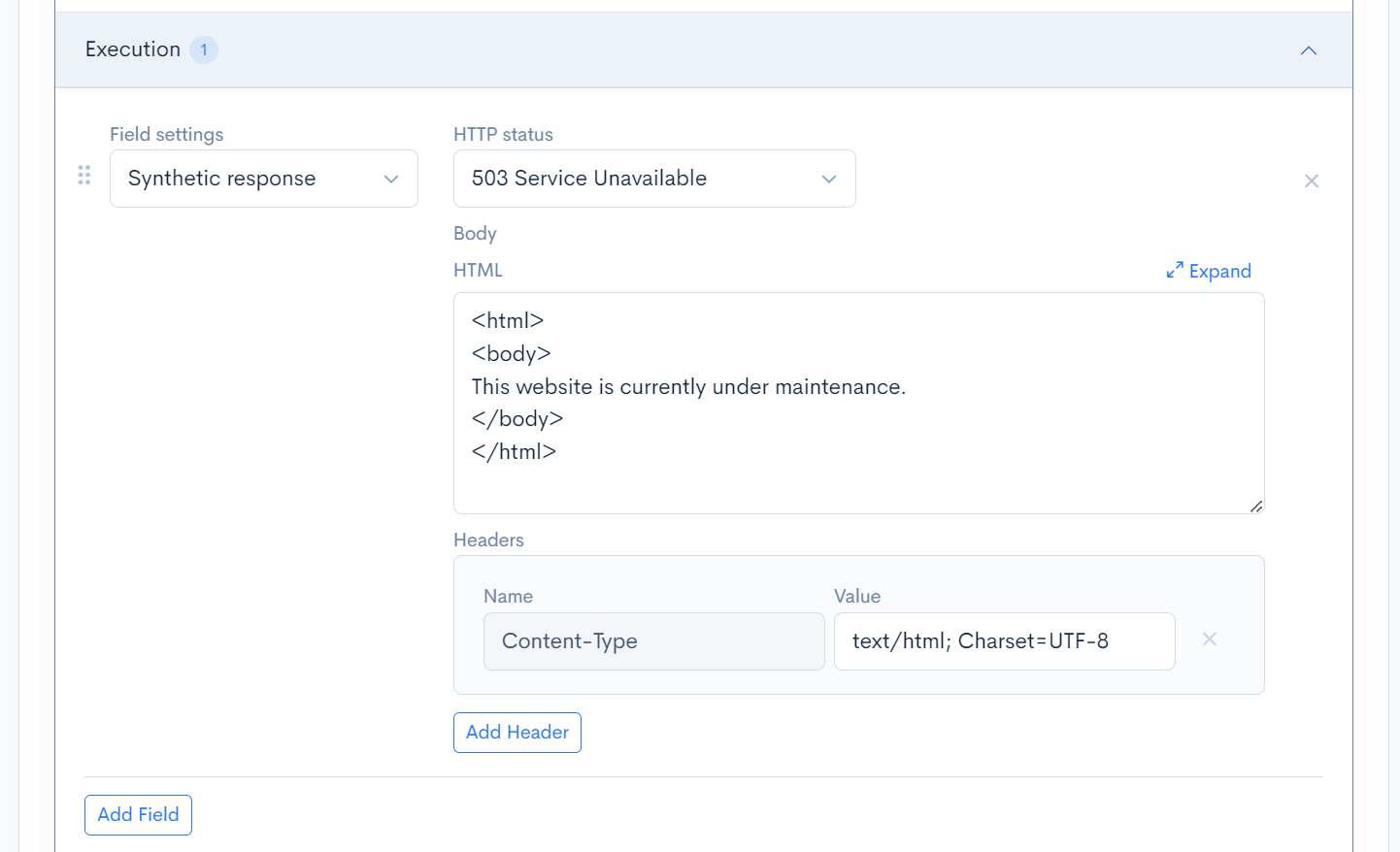
| Field | Setting |
|---|---|
| Field setting | Synthetic response |
| HTTP status | 503 Service Unavailable |
| Body | Include the phrase This website is currently under maintenance. in the body |
Directive Flag

Enable "Invert conditions result".
After configuring the page restrictions and confirming the rules, click the [Update] button.

If there are no issues after previewing the rules, proceed to configure the scheduled release.
Set the date and time for enabling access restrictions
You can automatically operate the deploy at any desired time by setting the scheduled release. This will apply the IP address restriction rules you configured to the maintenance start time.
Click the [Edit] button at the top of the edit page for the created deploy.
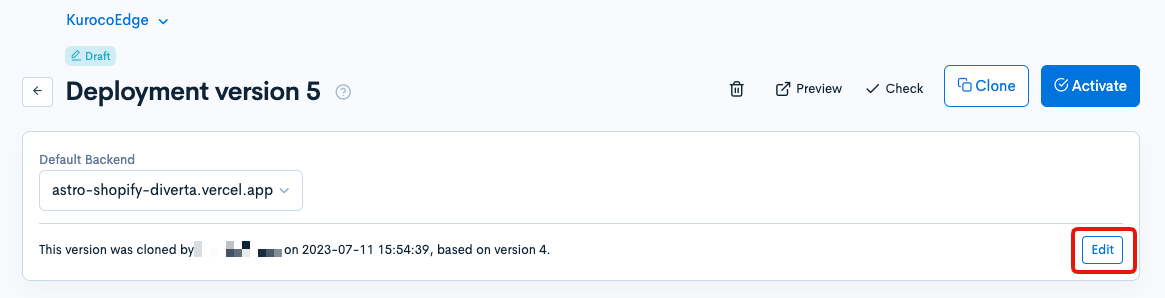
Set the maintenance start date and time as the scheduled release date and click the [Update] button.
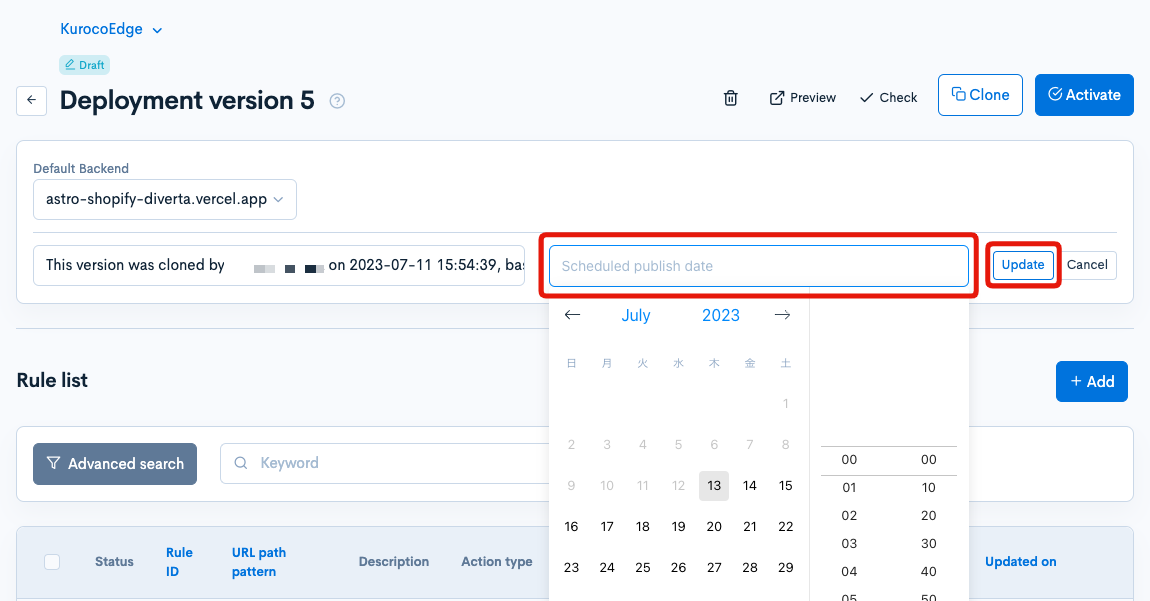
That completes the configuration of deploy "Version 5" with access restrictions enabled.
Create a deploy without access restrictions
Next, create a deploy without access restrictions.
Clone an existing deploy
Click [KurocoEdge]->[Deployment list].
Select the deploy "Version 5" you created earlier.
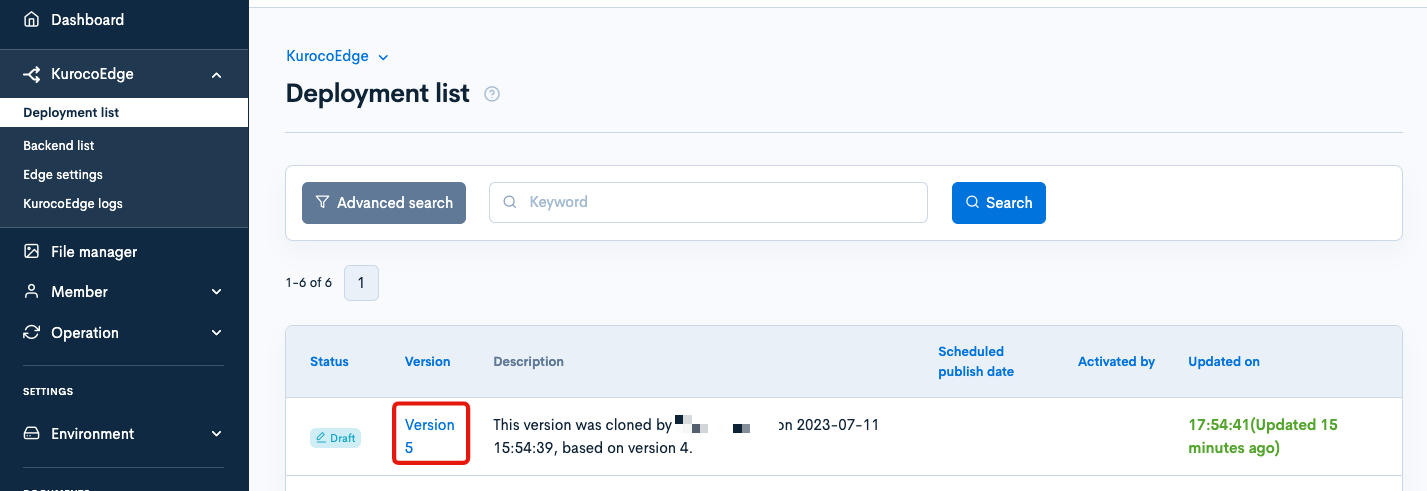
Click [Clone] in the upper right corner of the page.

Remove the rules
The deploy cloned from Version 5 contains IP address restriction rules. In the list of rules, check the checkbox for the IP address restriction rule and click [Delete].
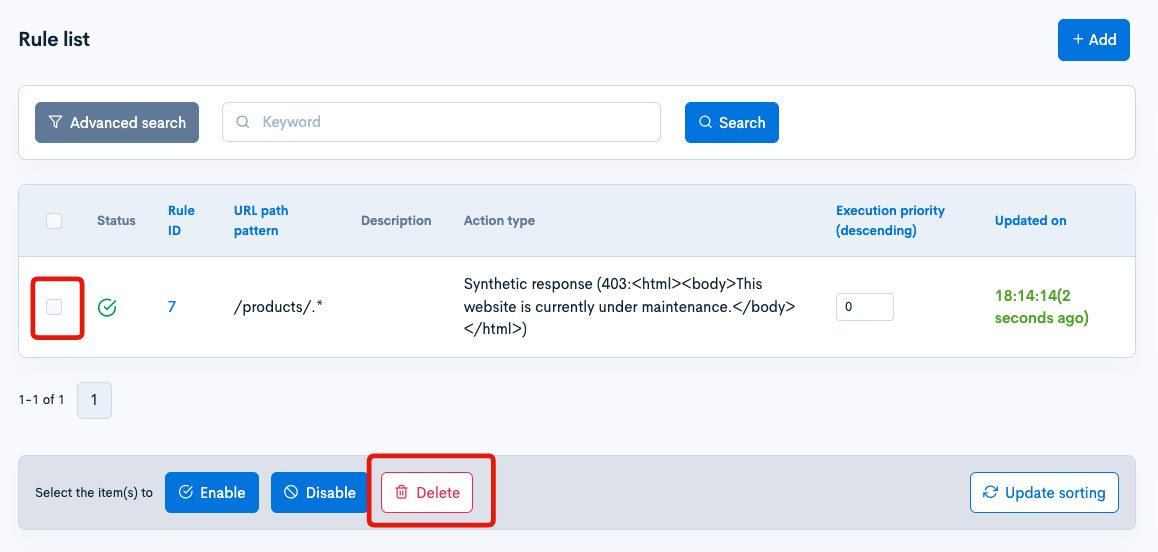
Verify that the IP address restriction has been removed in the preview, and if there are no issues, proceed to configure the scheduled release.
Set the date and time to remove access restrictions
You can automatically operate the deploy at any desired time by setting the scheduled release. This will apply the rule that does not have IP address restrictions to the maintenance end time.
Click the [Edit] button at the top of the edit page for the created deploy.
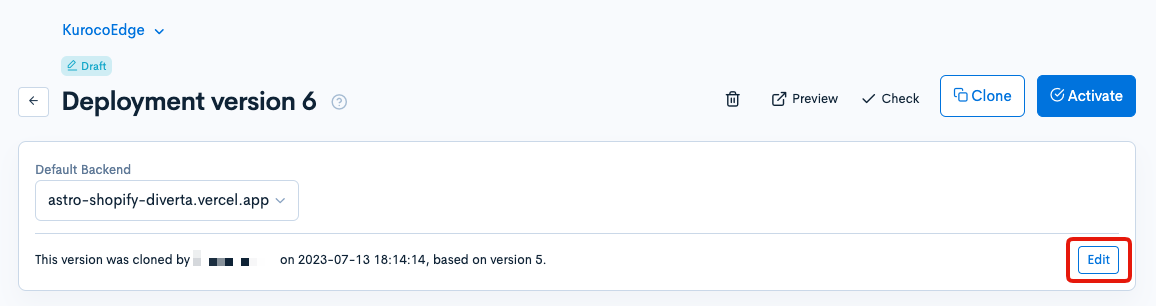
Set the maintenance end date and time as the scheduled release date and click [Update].
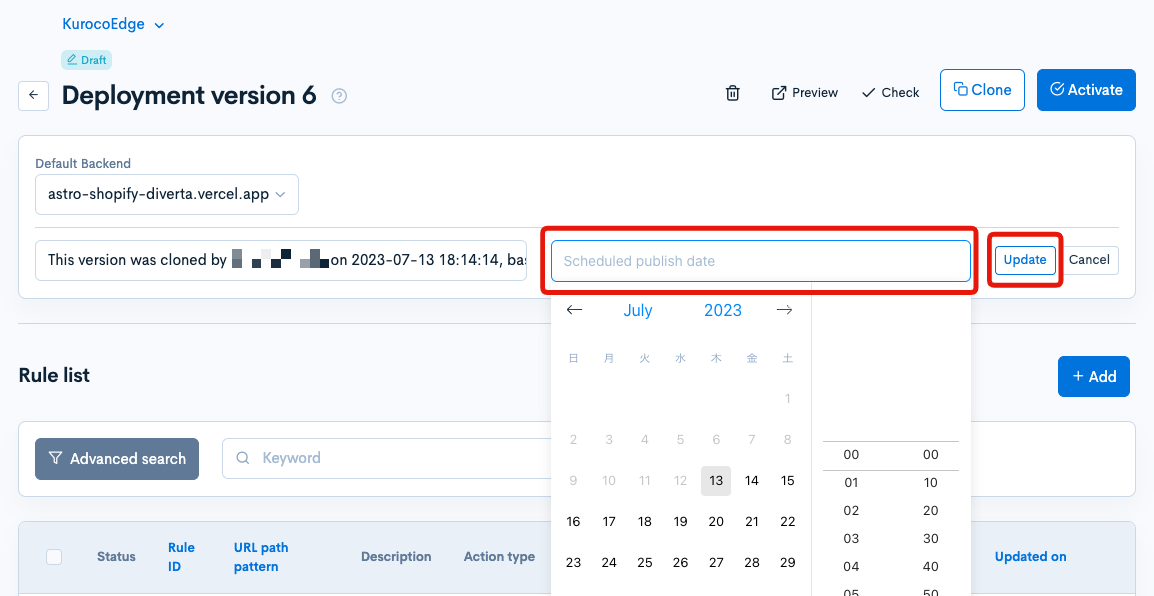
That completes the configuration of deploy "Version 6" without access restrictions.
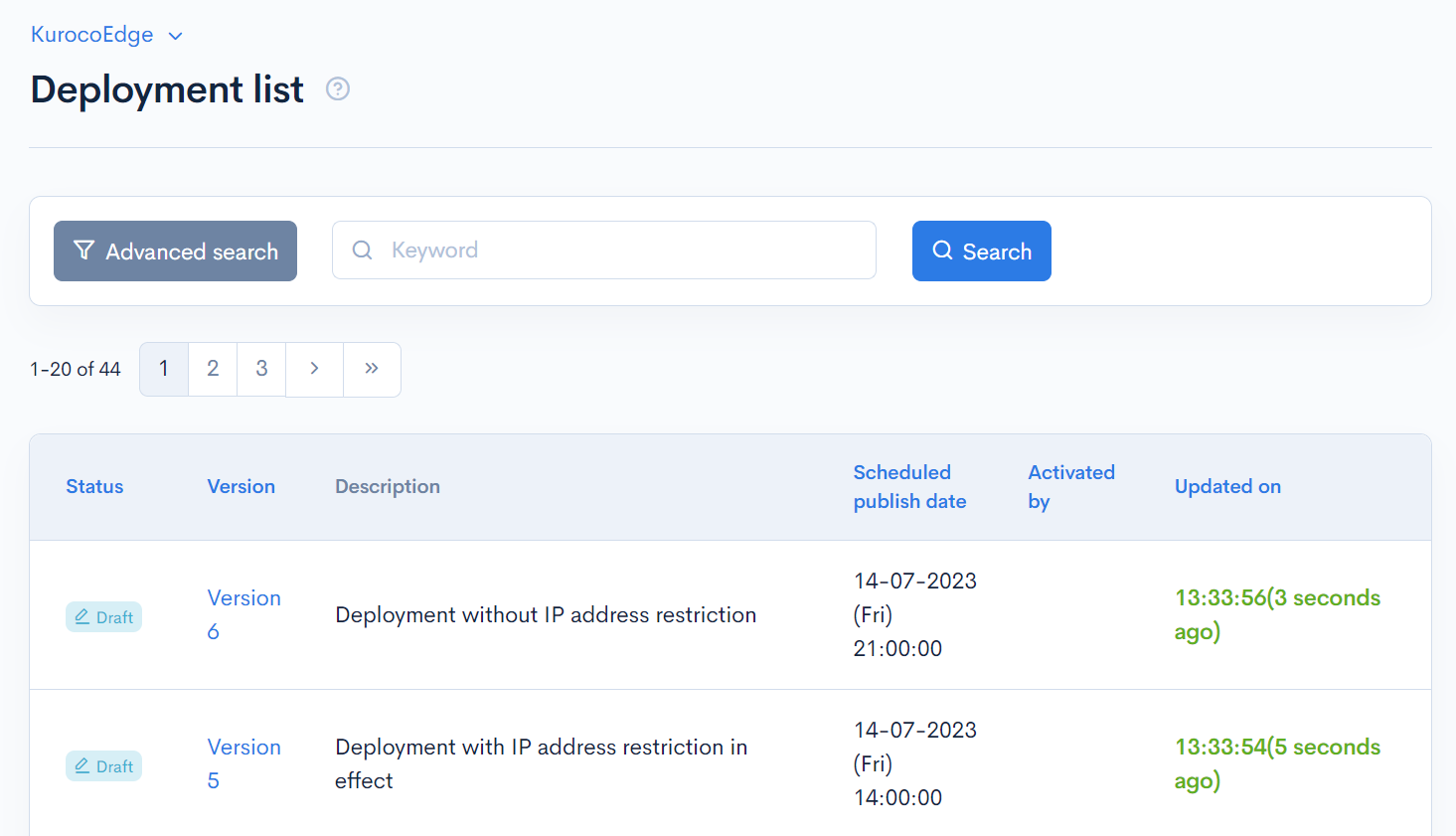
Finally, check the scheduled publish dates set on the deployment list page to confirm and complete the process.
Summary
With the above configuration, once the maintenance start time is reached, Deploy Version 5 will be activated to enable access restrictions, and the maintenance screen will be displayed under the /products/ directory. Similarly, deploy "Version 6" without access restrictions will be in operation when the maintenance end time is reached, and the display of the maintenance page will be lifted.
Support
If you have any other questions, please contact us or check out Our Discord Community.