Restricting Access from Overseas
Estimated time: 5 minutes
Overview
This tutorial explains how to restrict access to a website from overseas using KurocoEdge.
As an example, we will demonstrate how to restrict access from countries other than USA and from specific countries.
Prerequisites
This tutorial assumes that you have completed the following steps explained in the Beginner's Guide:
What You'll Learn
You will learn how to control the display based on the country of origin using the following steps:
Restricting Access from Countries Other Than USA
Creating Rules
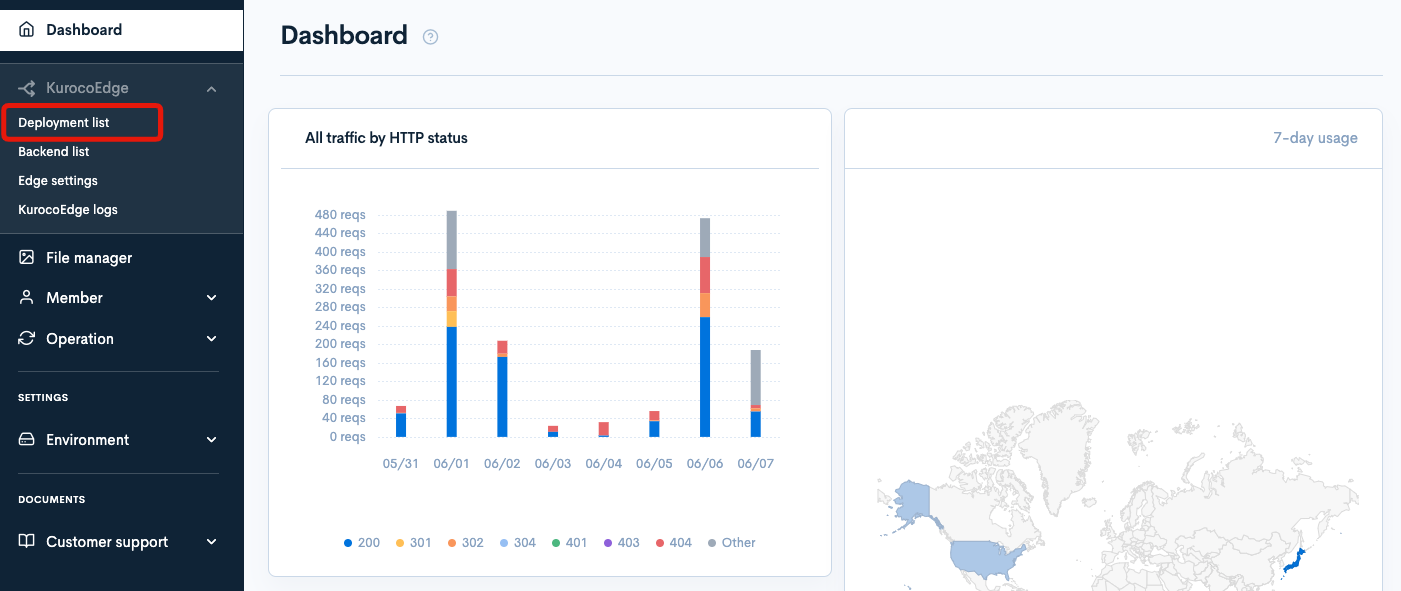
Click on [KurocoEdge] > [Deployment List] in the side menu.
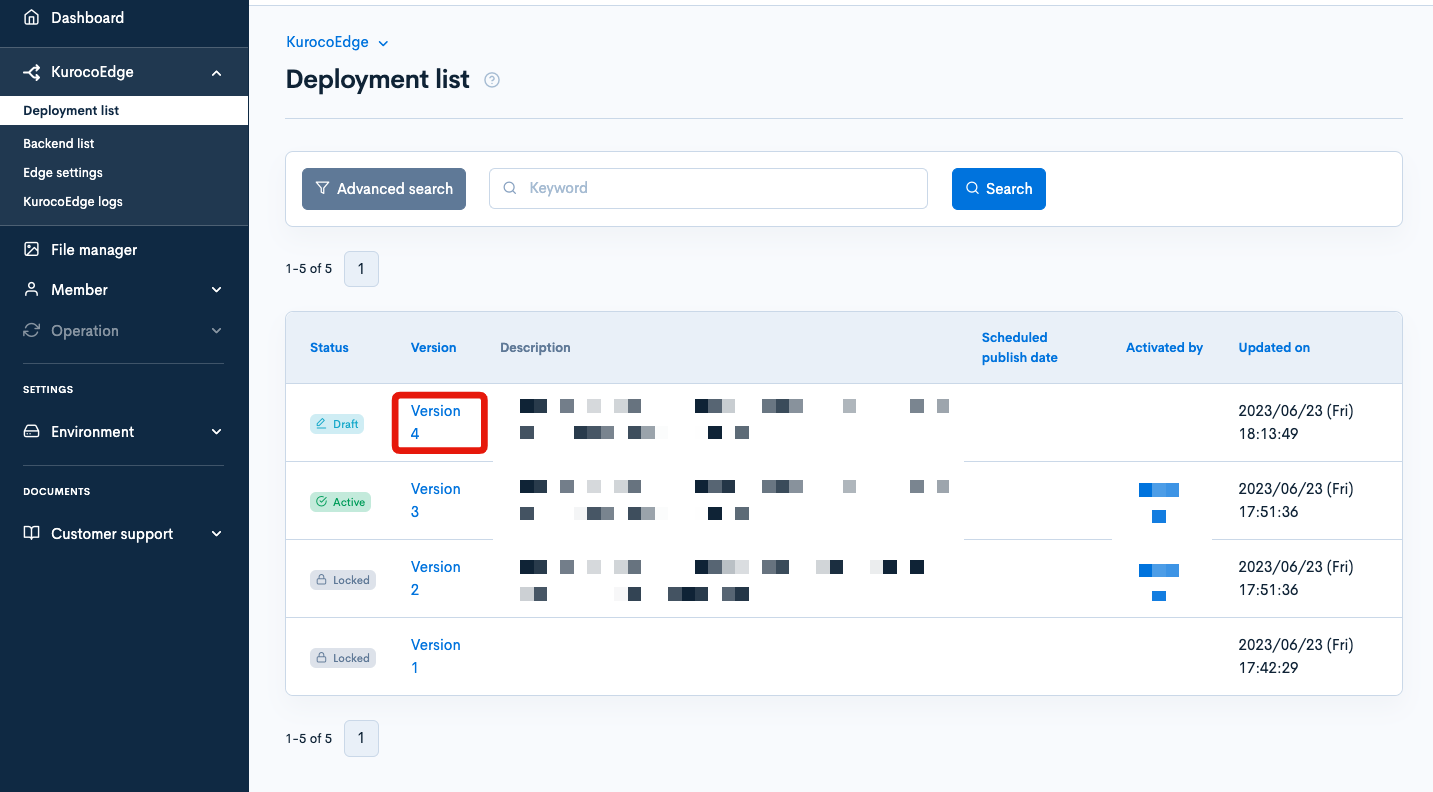
Select the draft deployment.
Click on [Clone] in the top right corner.

As the default backend, set your own site's URL which you added in Changing the Display of Your Website.

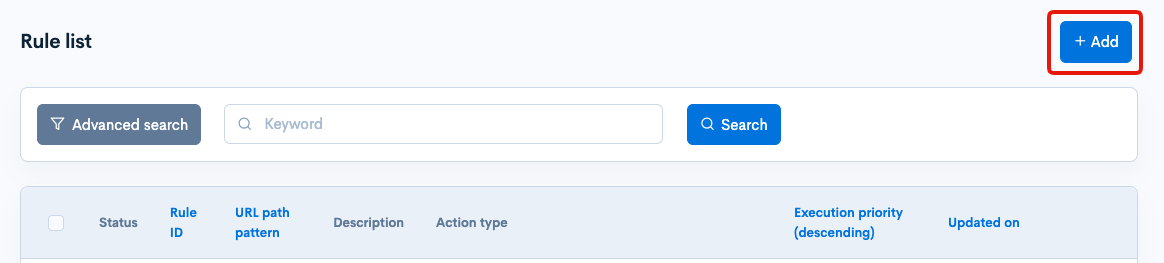
Click on [Add] in the rule list section.
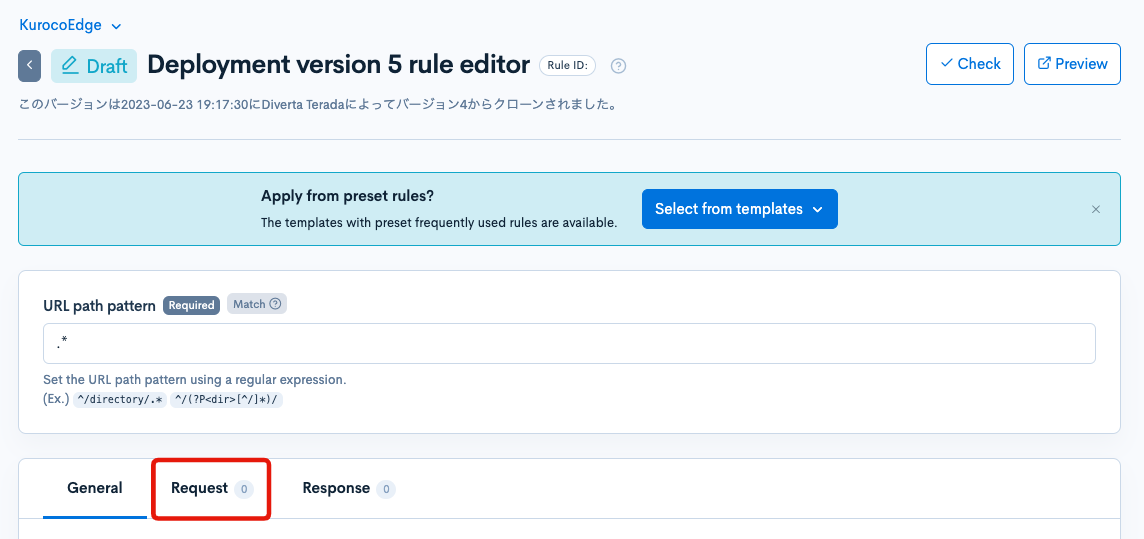
Click on the Request tab.
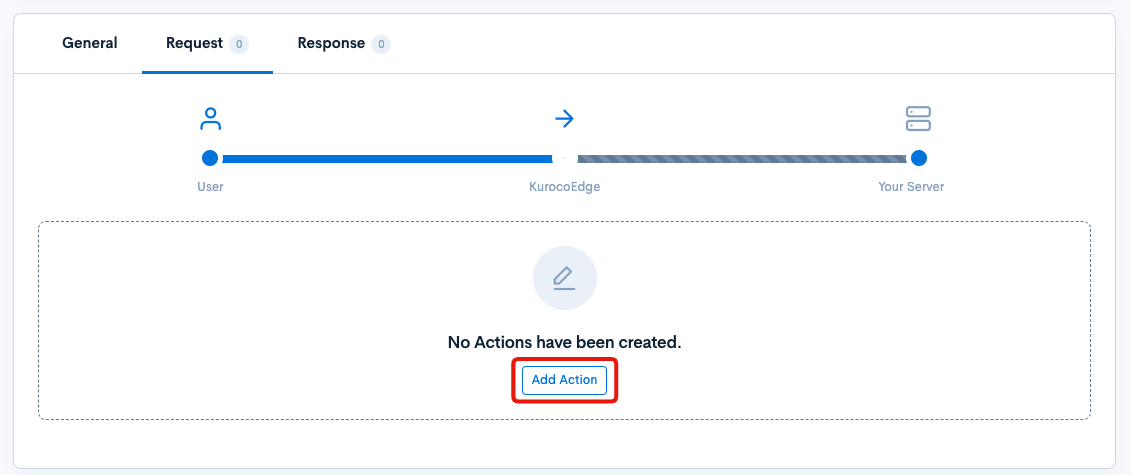
Click on [Add Action].
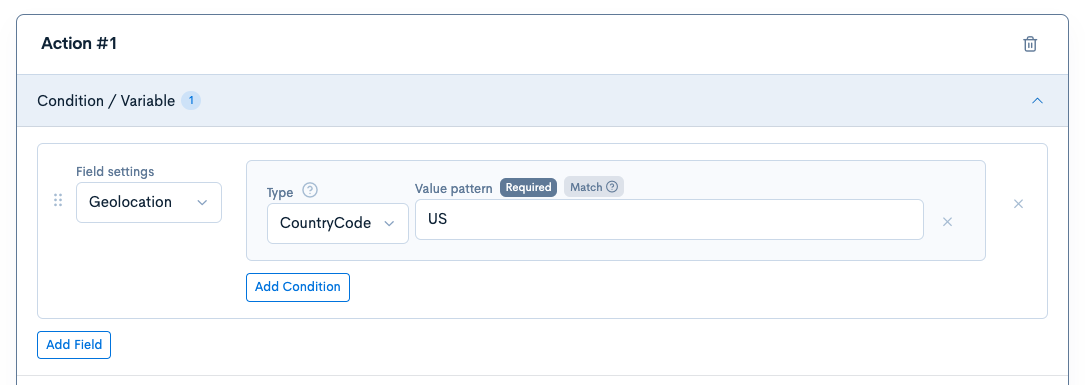
Condition / Variable
Click on [Add Item] under "Condition/Variable" and configure it as follows:
| Item | Setting |
|---|---|
| Field Setting | Geolocation |
| Type | CountryCode |
| Value Pattern | US |
CountryCode follows the ISO 3166-1 Alpha-2 standard. If you want to set a country code other than Japan, search for "country codes list" on Google or another search engine to find the appropriate code.
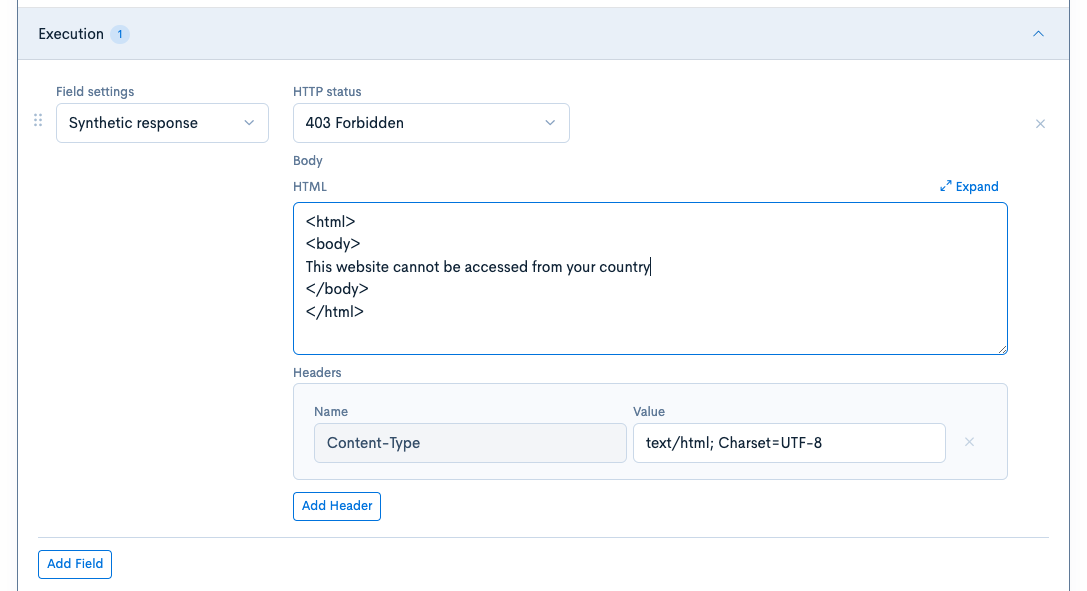
Execution
Click on [Add Item] under "Execution" and configure it as follows:
| Item | Setting |
|---|---|
| Item Setting | Synthetic Response |
| HTTP Status | 403 Forbidden |
| Body | Enter the content of the error page in HTML format. In this tutorial, we have modified the default "sample" text to "This website cannot be accessed from your country". |
| Headers | No editing required |
Directive flag
Turn on Invert conditions result.

Confirm the Rules
Go back to the deployment details page and click on [Preview].

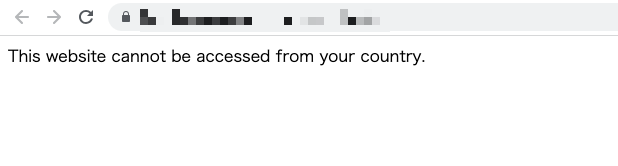
When accessing the site from a country other than Japan, the screen configured in Execution will be displayed.
Restricting Access from Specific Countries
Creating Rules
Click on [KurocoEdge] > [Deployment List] in the side menu.
Select the draft deployment.
Click on [Clone] in the top right corner.
As the default backend, set your own site's URL which you added in Changing the Display of Your Website.
Click on [Add] in the rule list section.
Click on the Request tab.
Click on [Add Action].
Condition / Variable
Click on [Add Item] under "Condition/Variable" and configure it as follows:
| Item | Setting |
|---|---|
| Item Setting | Location |
| Type | CountryCode |
| Value Pattern | Country code of the country to restrict access |
CountryCode follows the ISO 3166-1 Alpha-2 standard. Search for "country codes list" on Google or another search engine to find the appropriate code.
Execution
Click on [Add Item] under "Execution" and configure it as follows:
| Item | Setting |
|---|---|
| Item Setting | Synthetic Response |
| HTTP Status | 403 Forbidden |
| Body | Enter the content of the error page in HTML format. In this tutorial, we have modified the default "sample" text to "This website cannot be accessed from your country". |
| Headers | No editing required |
Confirm the Rules
Go back to the deployment details page and click on [Preview].
When accessing the site from the specified country, the screen configured in Execution will be displayed.
That's it! You have successfully set up the configuration to block access from overseas.
Support
If you have any other questions, please contact us or check out Our Discord Community.