Integrating KurocoEdge
Estimated Time: 10 minutes
Overview
KurocoEdge is a service that allows rewriting of HTML and header information for any website without modifying the existing system. As a beginner's guide, we have prepared the following 3 steps:
- Changing the Display of a Sample Site
- Changing the Display of Your Website
- Integrating KurocoEdge
In this tutorial, we will apply KurocoEdge rules to your own website.
Integrating KurocoEdge
Custom Domain/TLS Certificate Settings
To actually integrate KurocoEdge with an existing site, site registration and DNS settings are required.
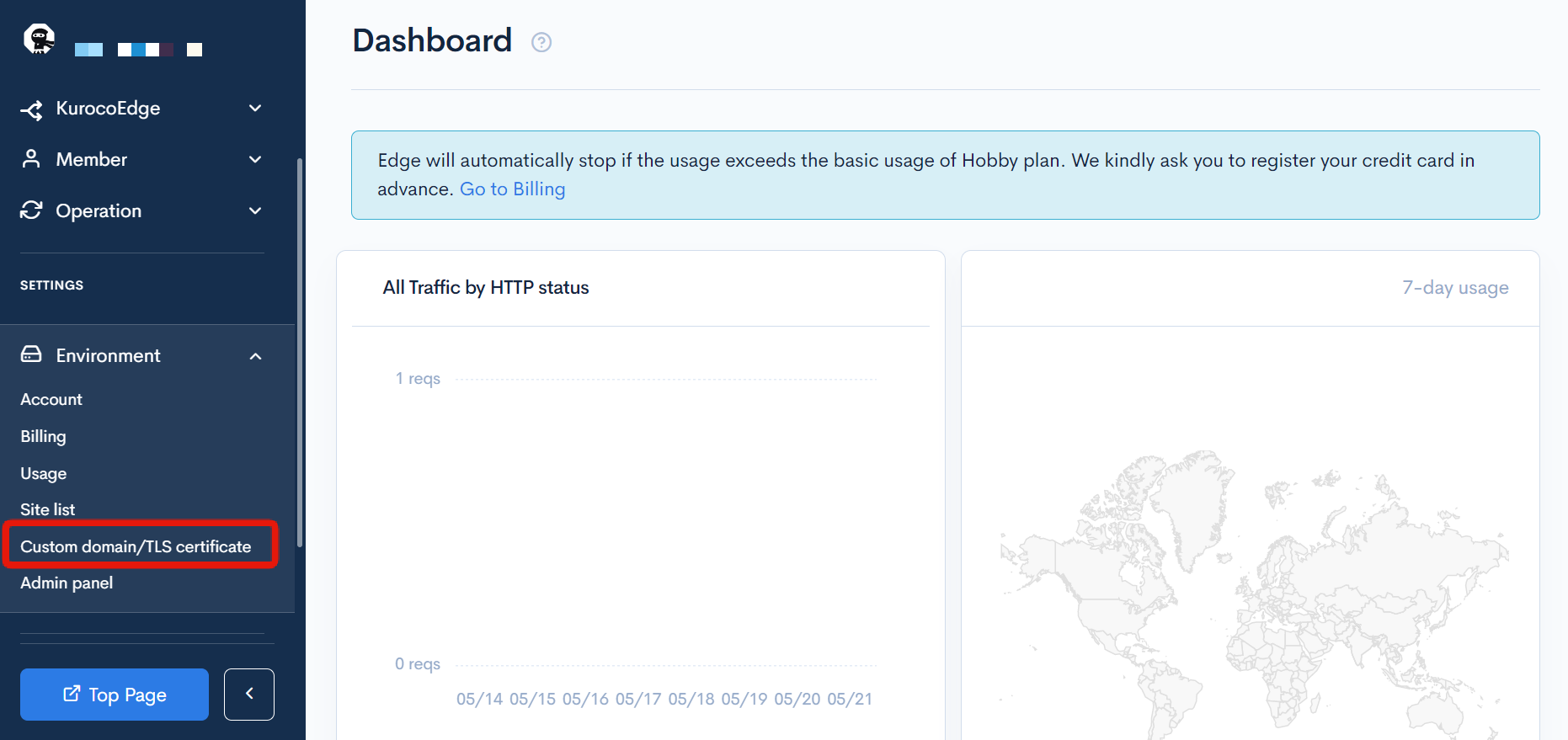
First, register the site you wish to be optimized. Click [Preferences] -> [Custom Domain/TLS Certificates].
Enter the domain of the site to be optimized and click [Add].
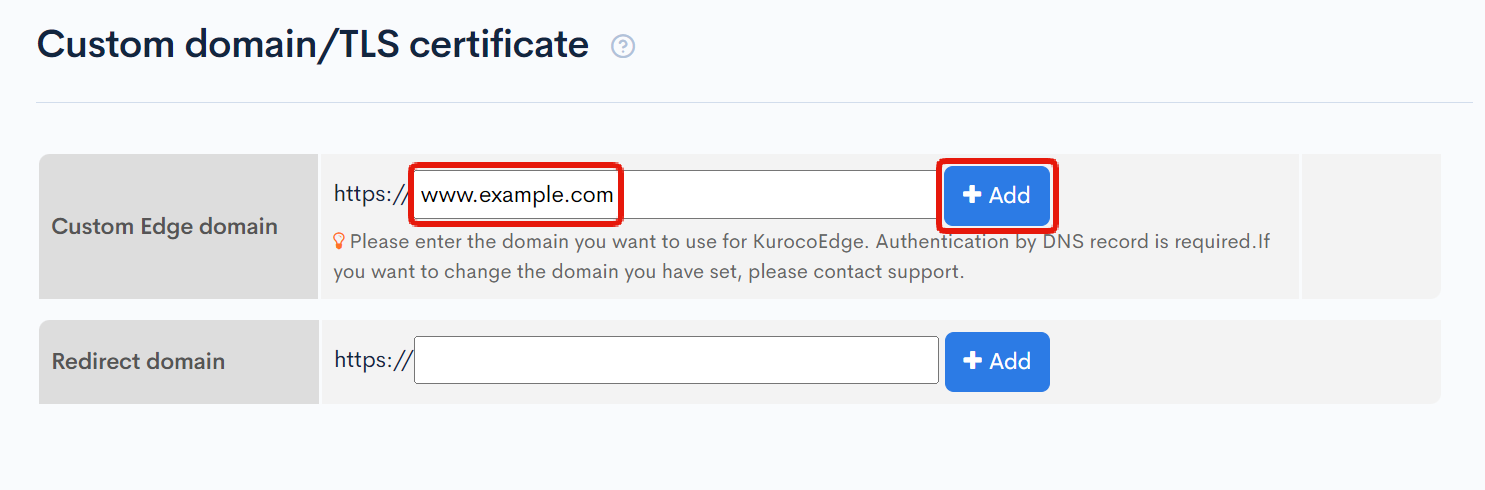
No trailing slashes, directories, etc. are required for the step above.
Once added, the custom domain cannot be changed. If you have entered it incorrectly, please contact support. Inquiry Form
Custom Domain DNS Records/TLS Certificate Settings
When you enter your own Edge domain, the DNS setting value will be displayed. Set the CNAME displayed in the [Domain ownership verification] section.
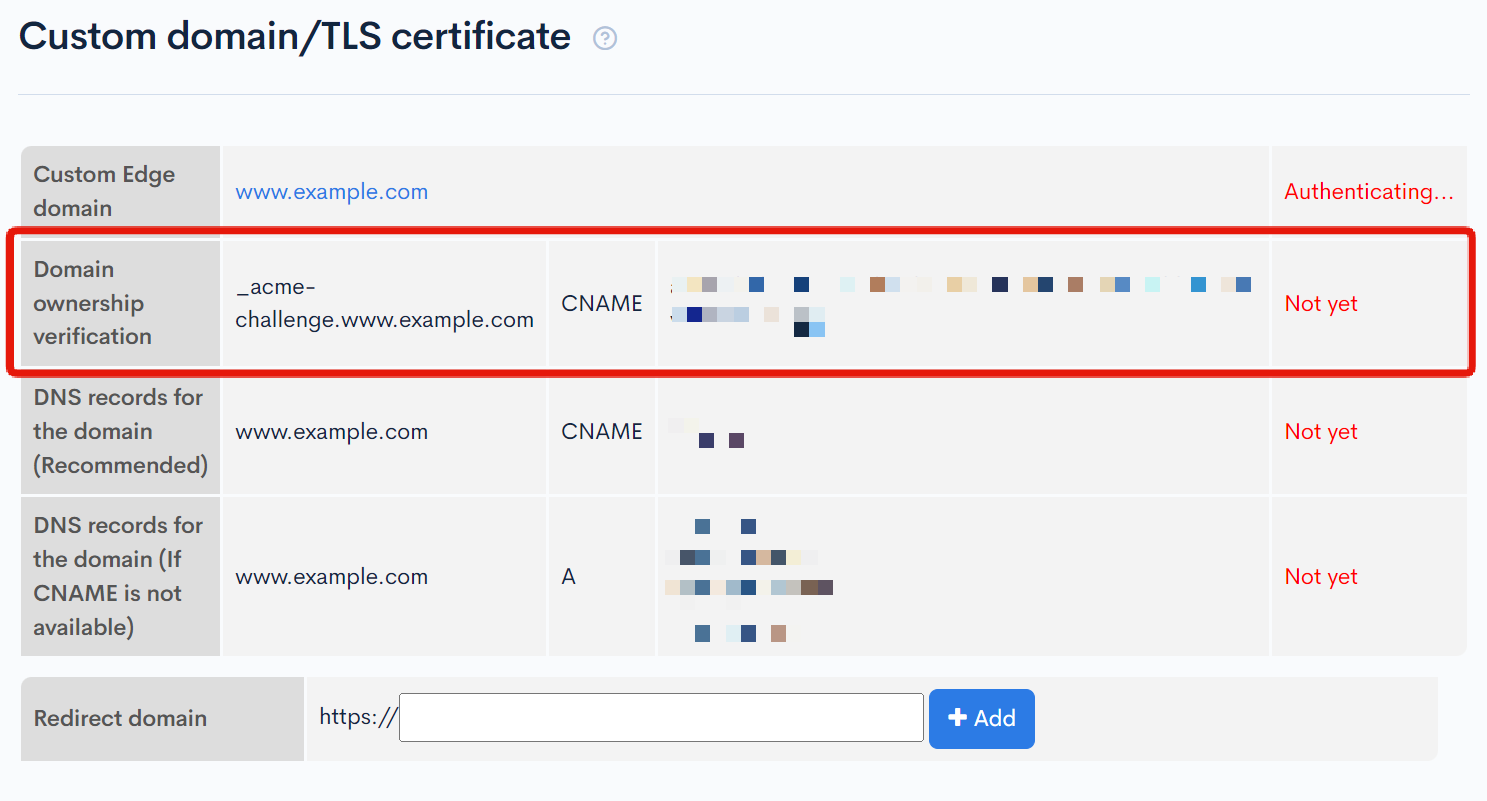
Reference) DNS record settings differ depending on which domain registrar company you acquired it from. For setting details, please refer to the specific domain company from which you acquired your domain(s).
It may take some time until the updated DNS settings are reflected. Once you have confirmed that the [Domain ownership verification] step is completed, proceed to the next step.
Existing sites will not be affected until you Configure DNS Records to Use your Domain.
Change KurocoEdge Domain
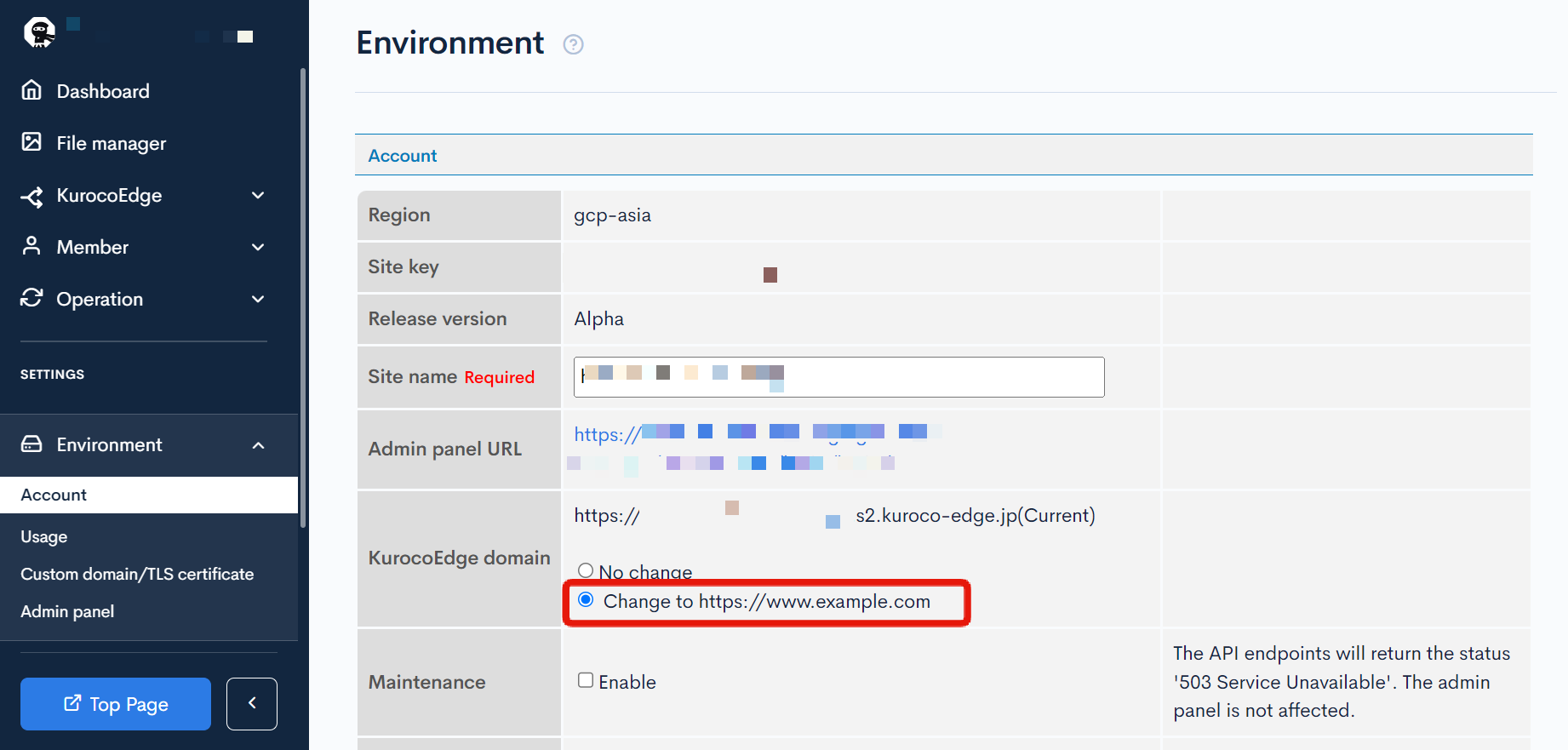
Next, change the KurocoEdge domain for your account settings.
Click [Environment] -> [Account].
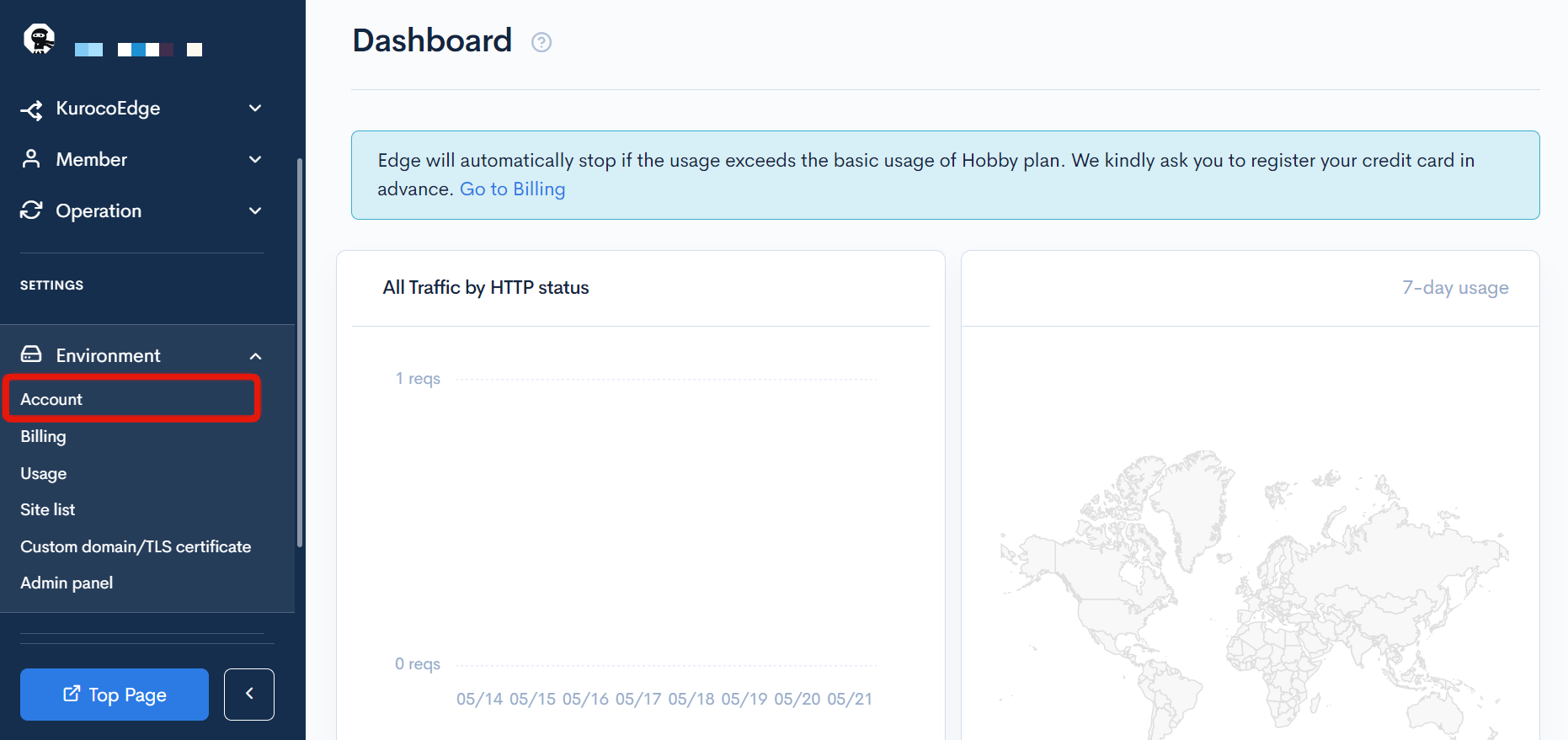
The original domain set for the KurocoEdge domain will be displayed. Select the option to change it and click [Update].
Configure DNS Records to Use your Domain
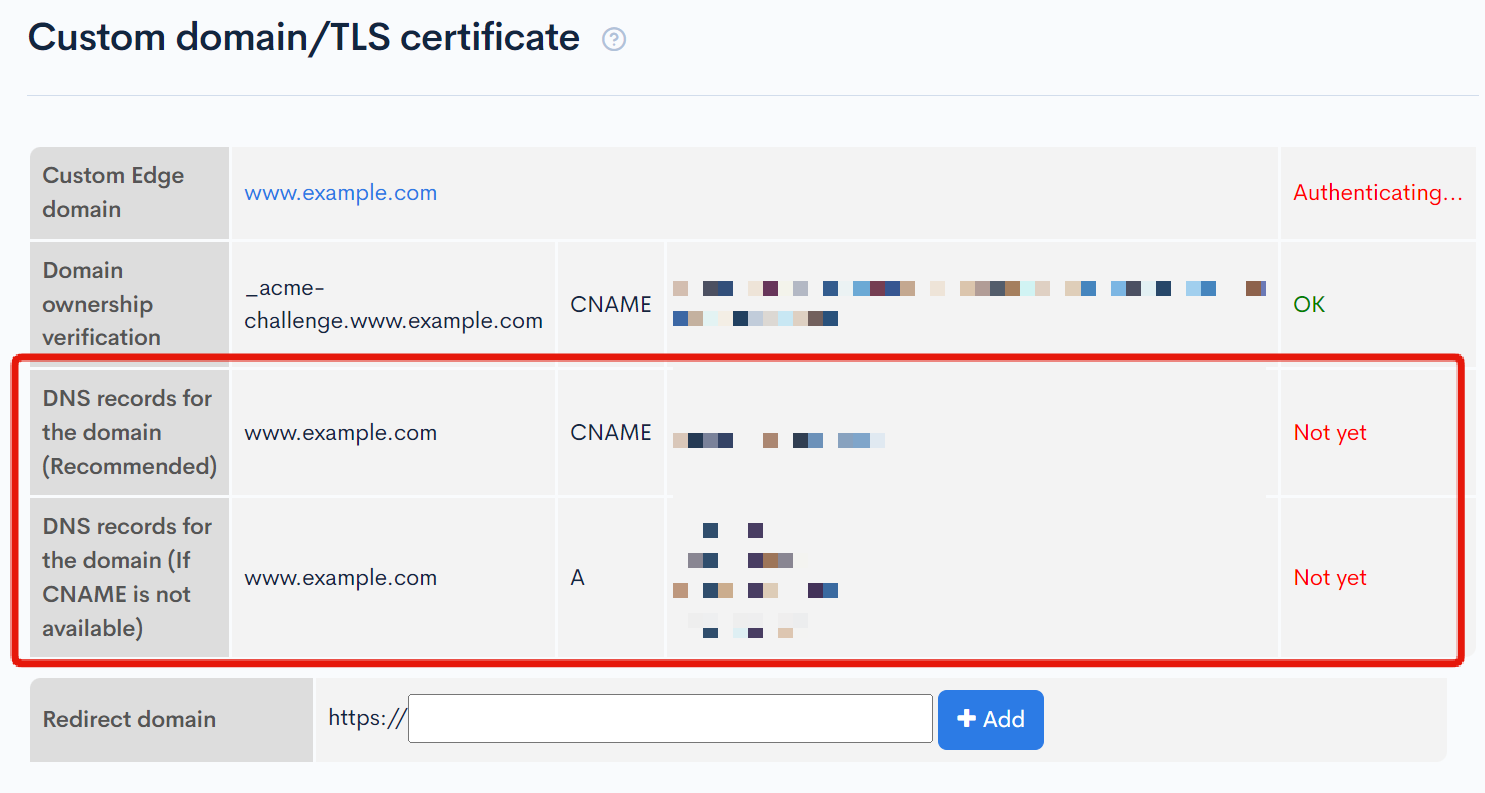
Finally, set up the DNS records to use your domain. Click [Environment] -> [Custom Domain/TLS Certificates].
Follow the configuration shown below and set the DNS record to use the domain.
It is recommended to fix the host file and check the display of the site before changing the DNS. After confirming the site is being displayed, be sure to restore the host's setting.
After completing the DNS settings, the rules set in KurocoEdge will be applied to your site.
Summary
By properly configuring KurocoEdge, it is possible to adjust the display and meta tags of your site, and implement additional functions, without having to modify the existing system.
Please refer to other our other documents and tutorials and learn more about optimizing your existing site for free, using our tool.
Support
If you have any other questions, please contact us or check out Our Discord Community.